How to sign in
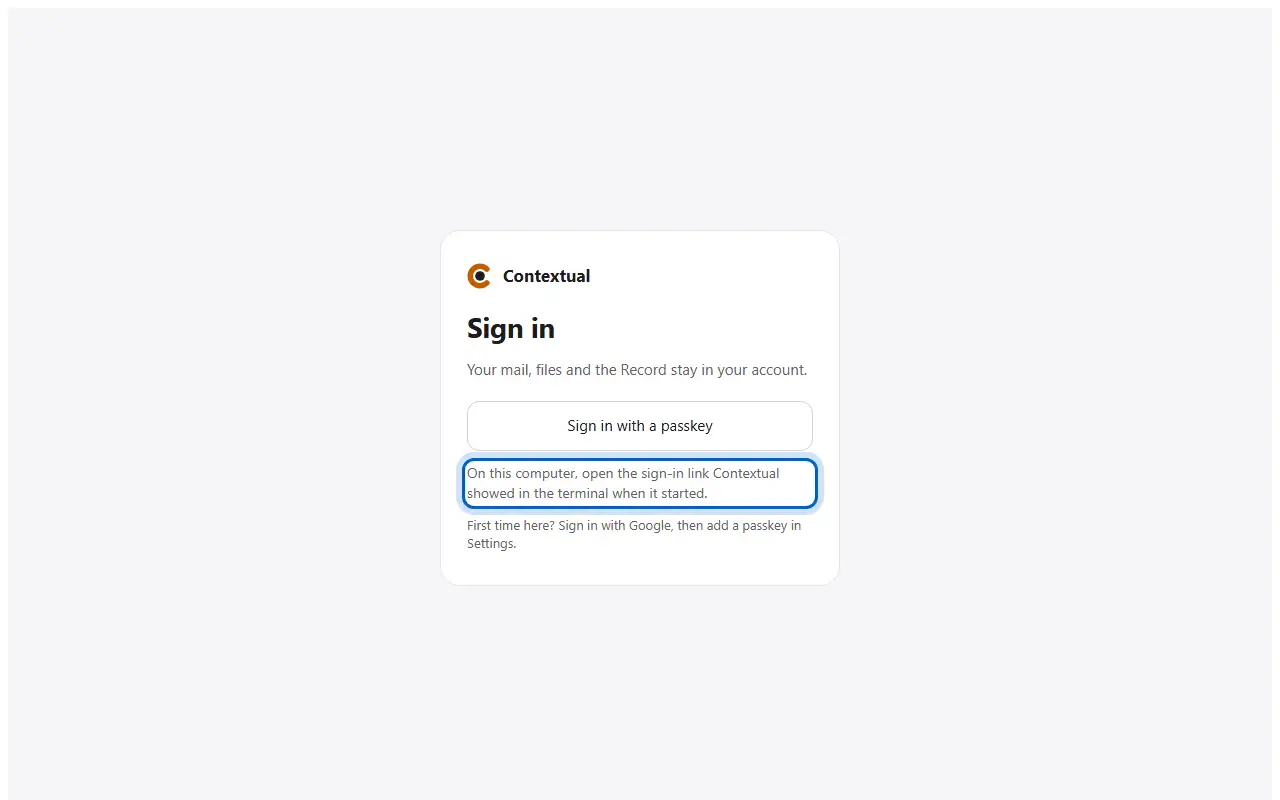
- Open Contextual and sign in. On your own computer, open the sign-in link Contextual showed when it started.
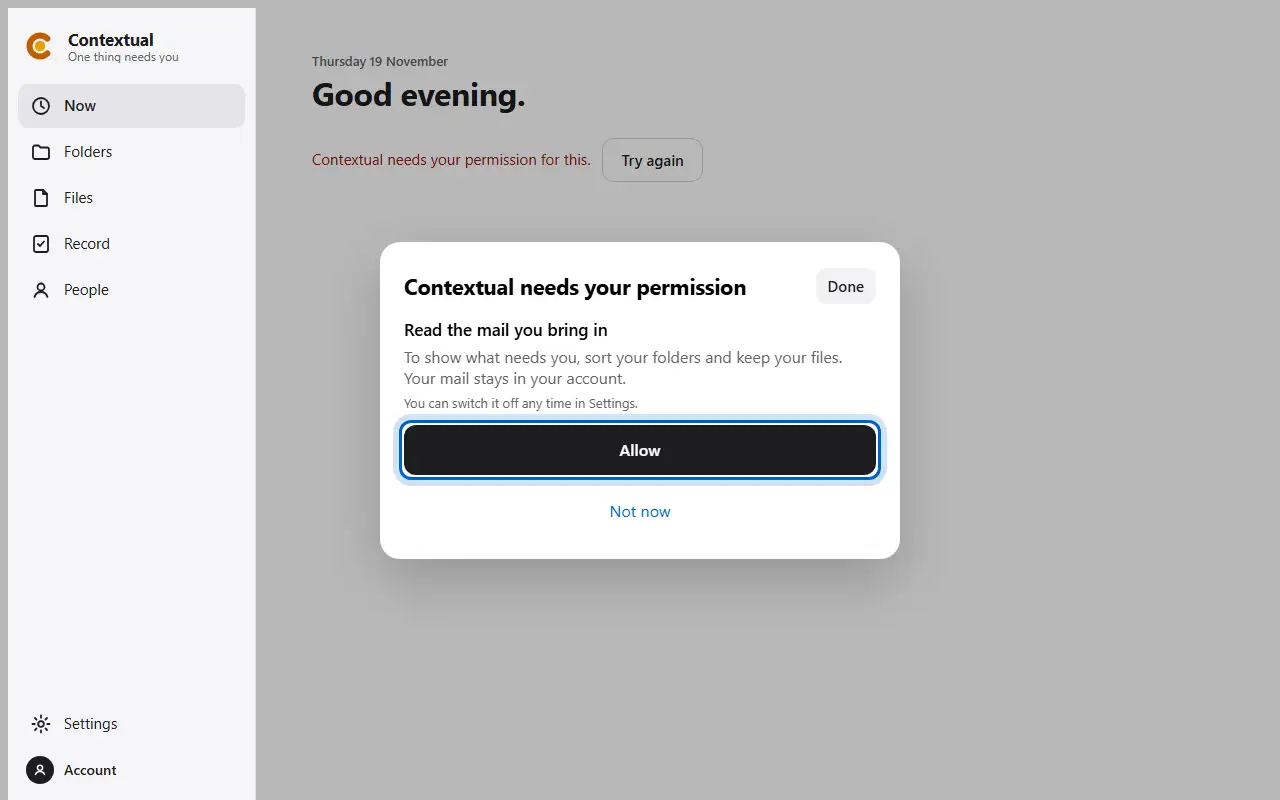
- The first time, Contextual asks before it reads your mail. Press Allow.
- Step 1
- Step 2
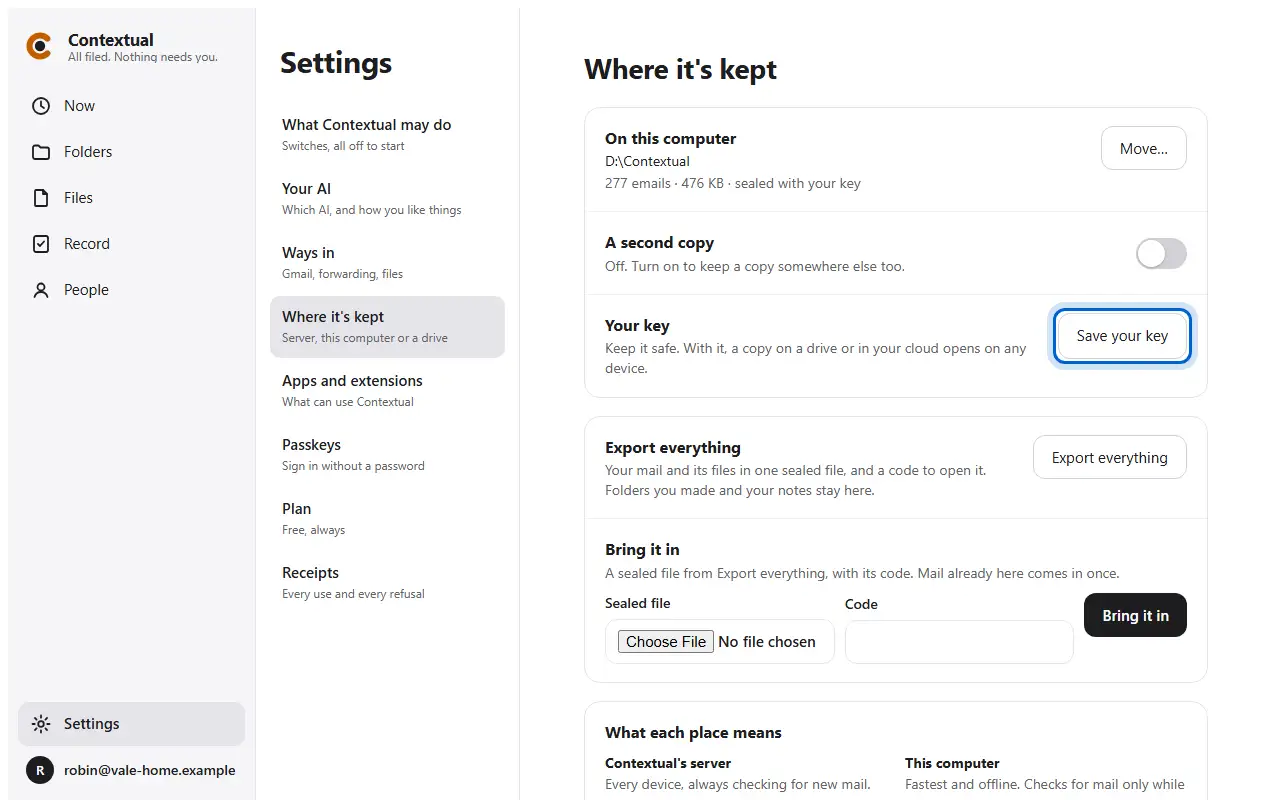
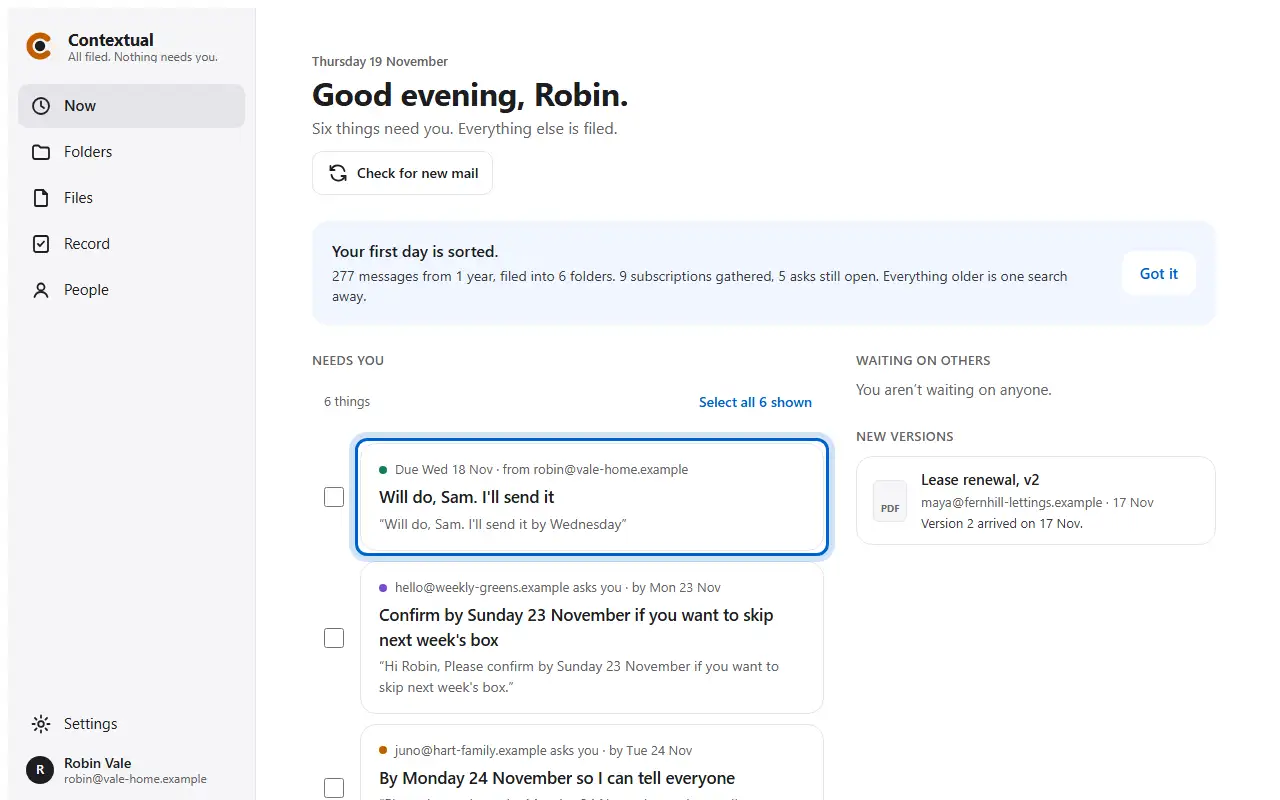
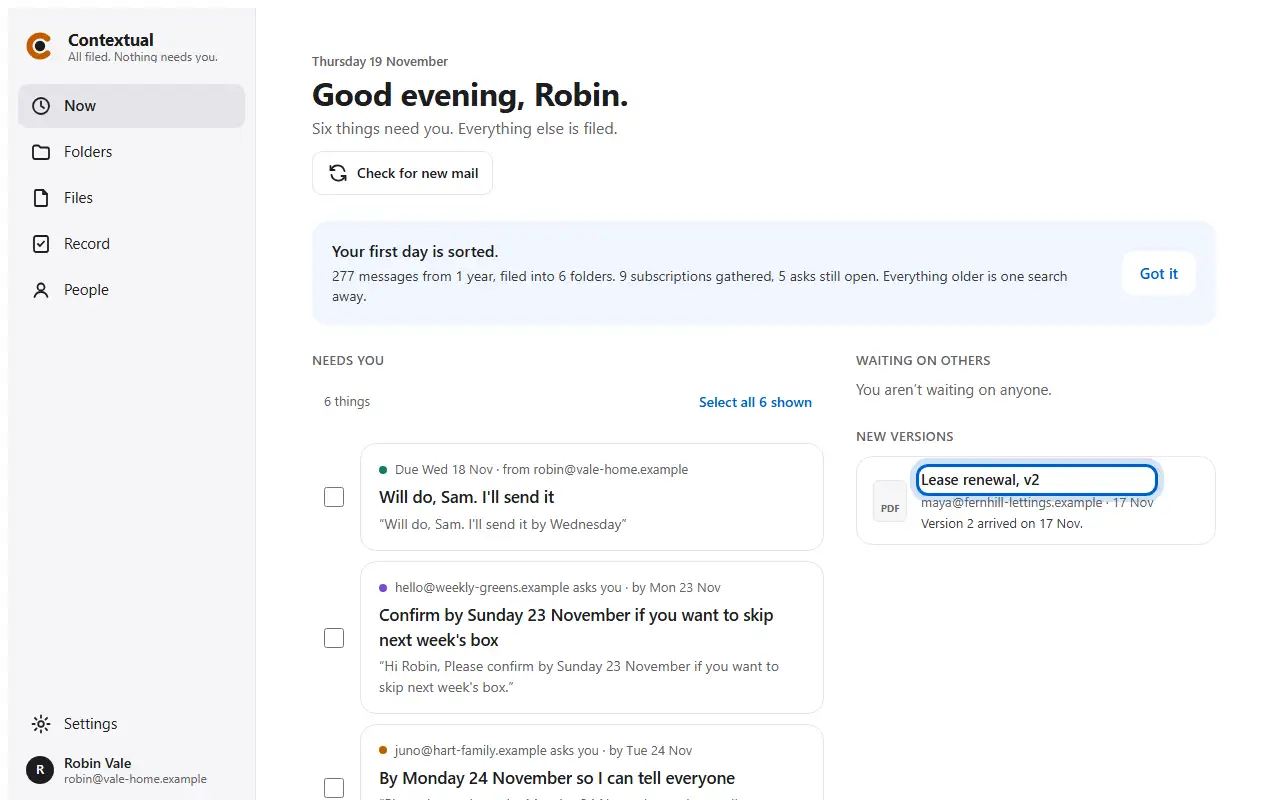
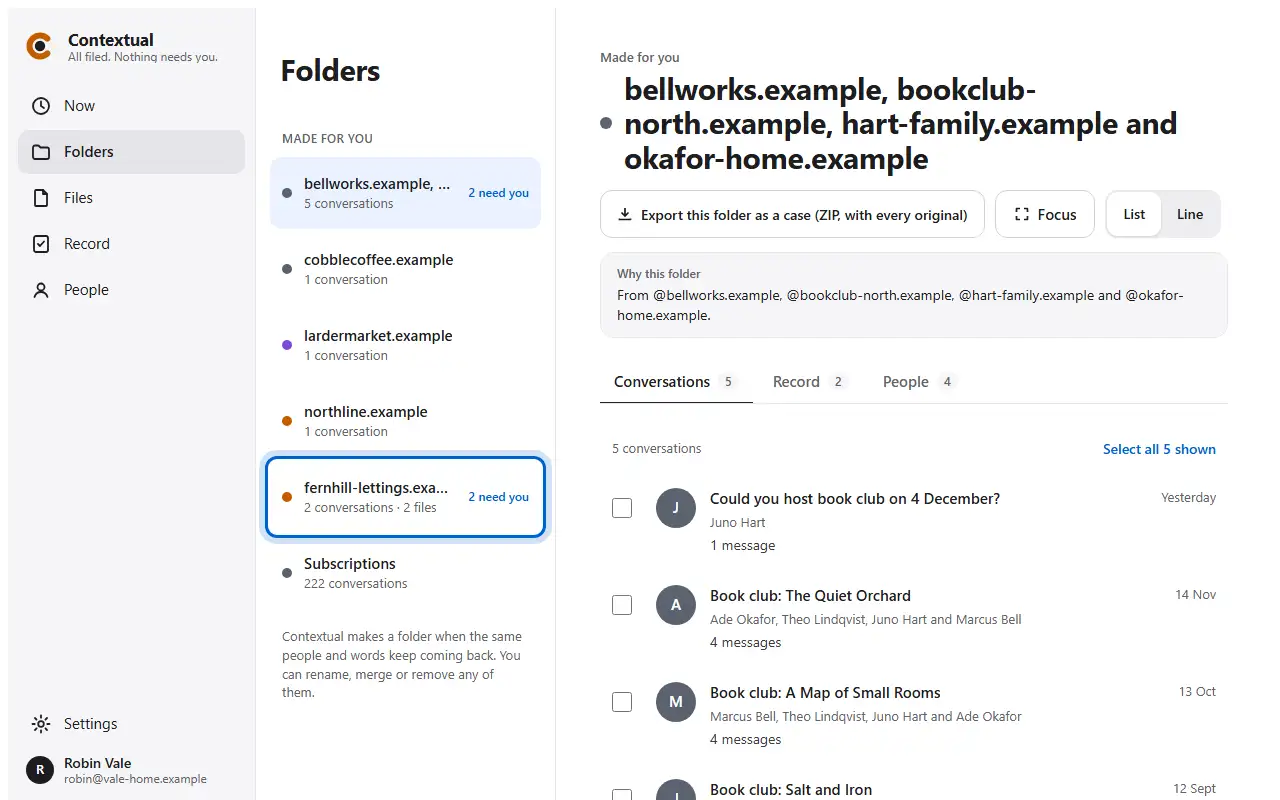
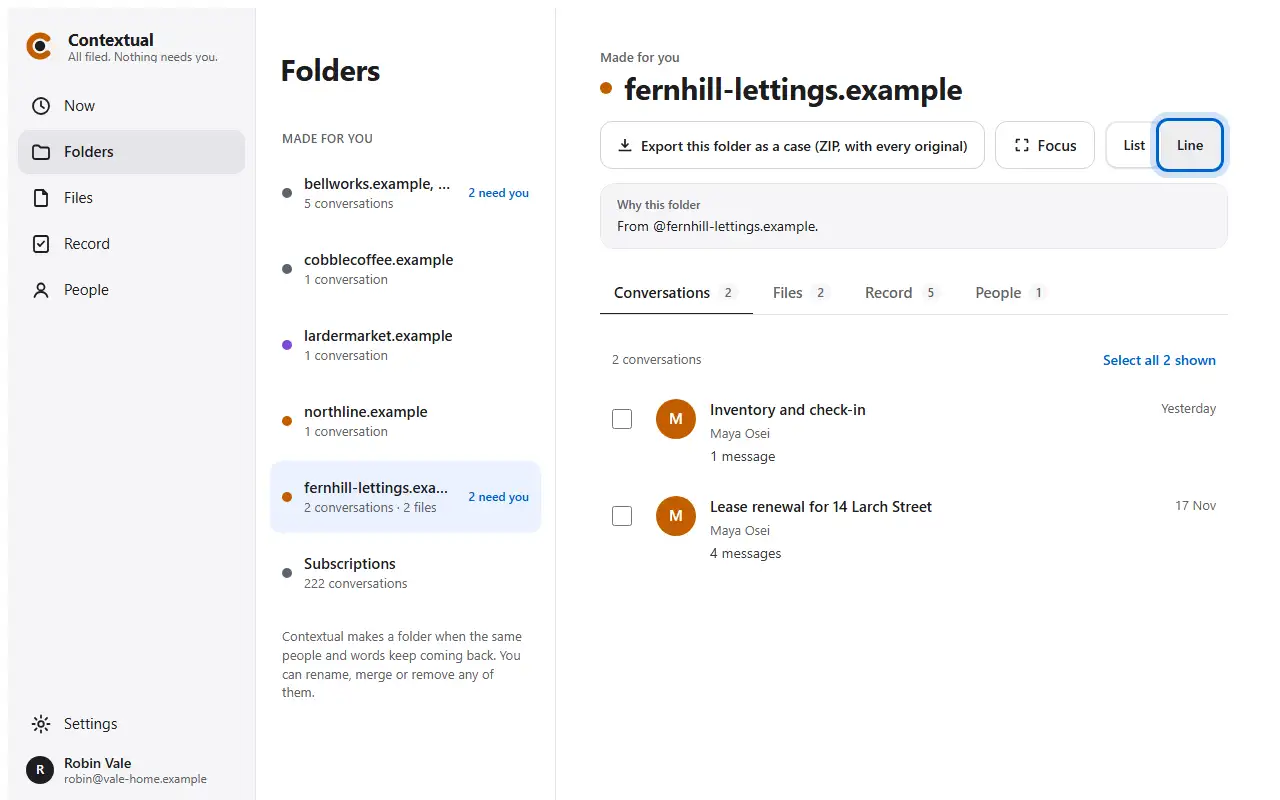
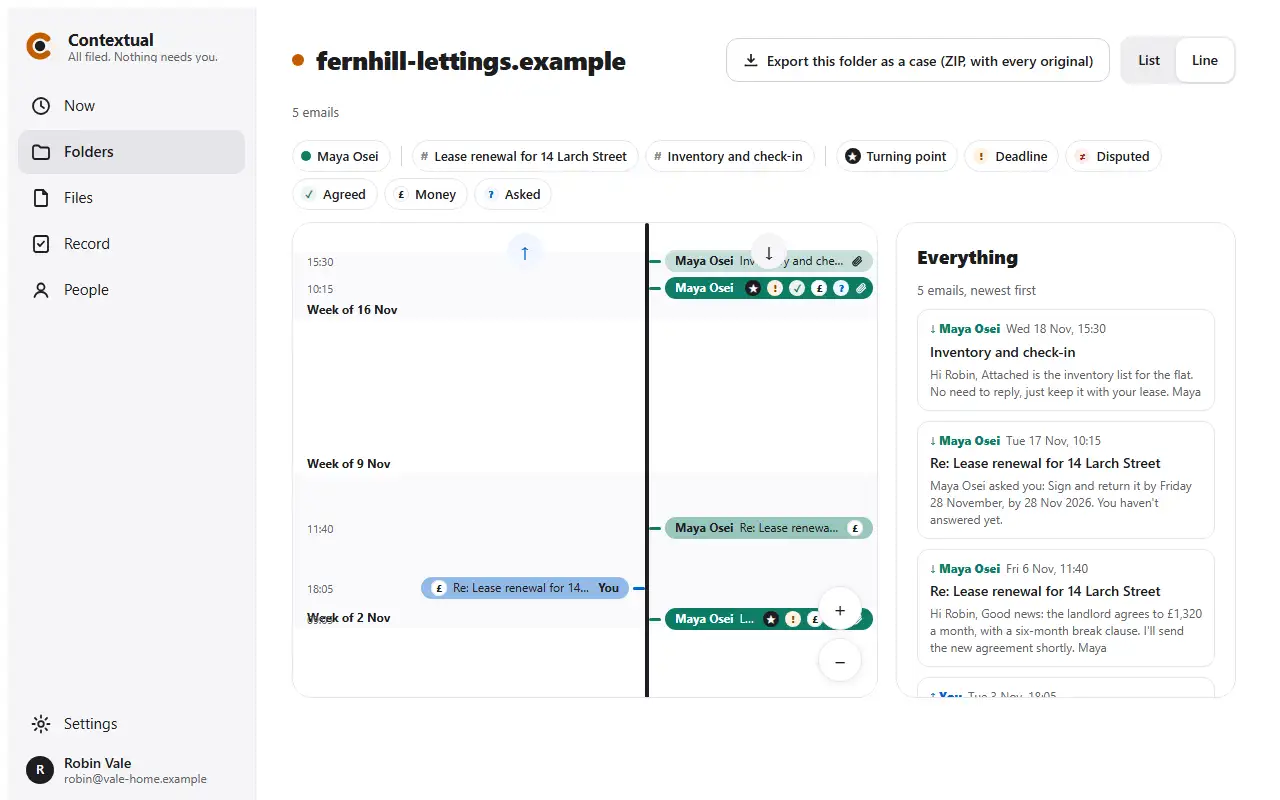
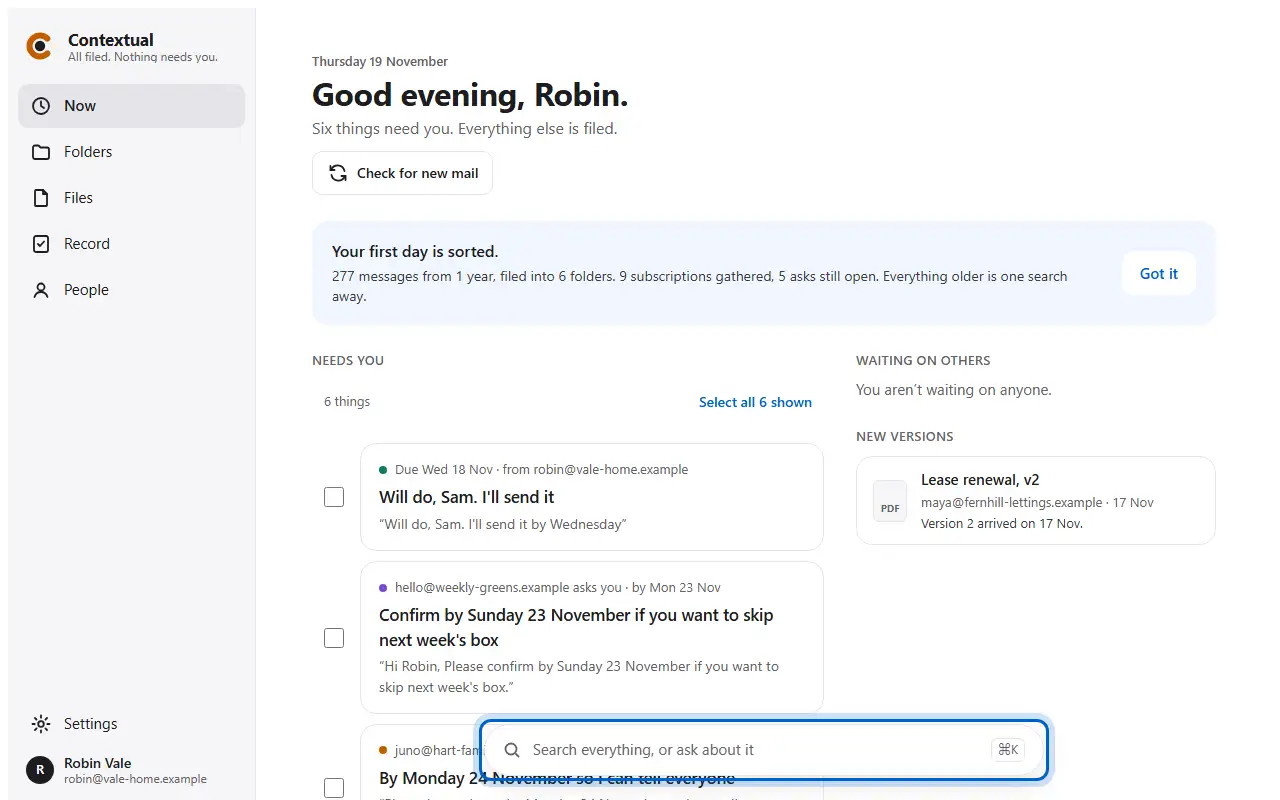
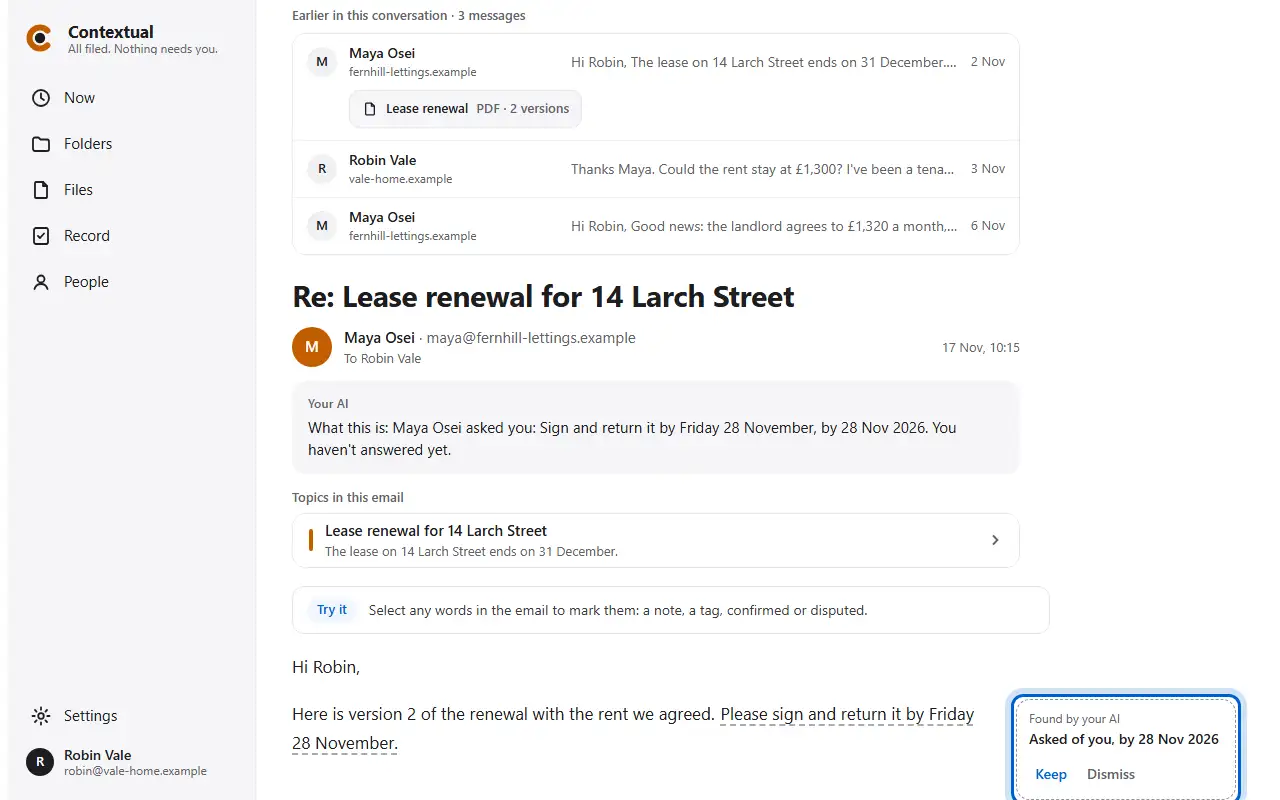
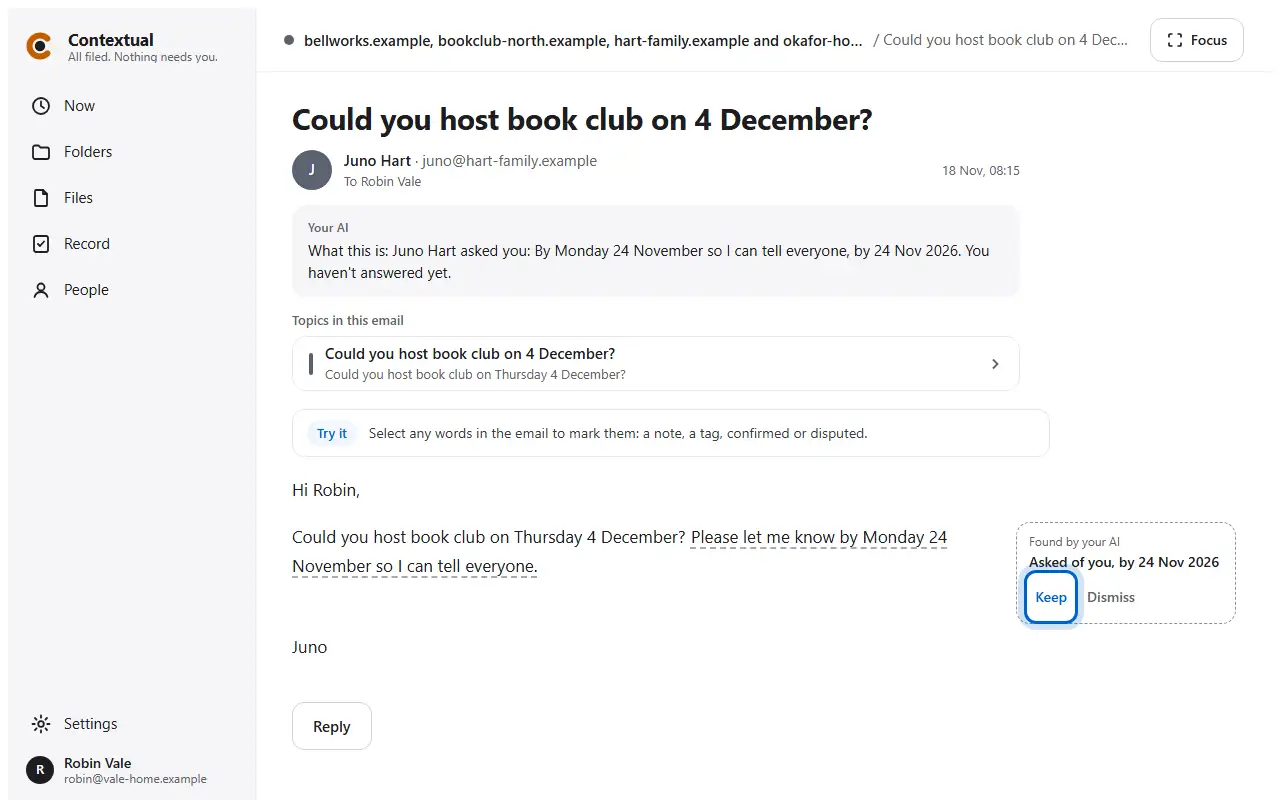
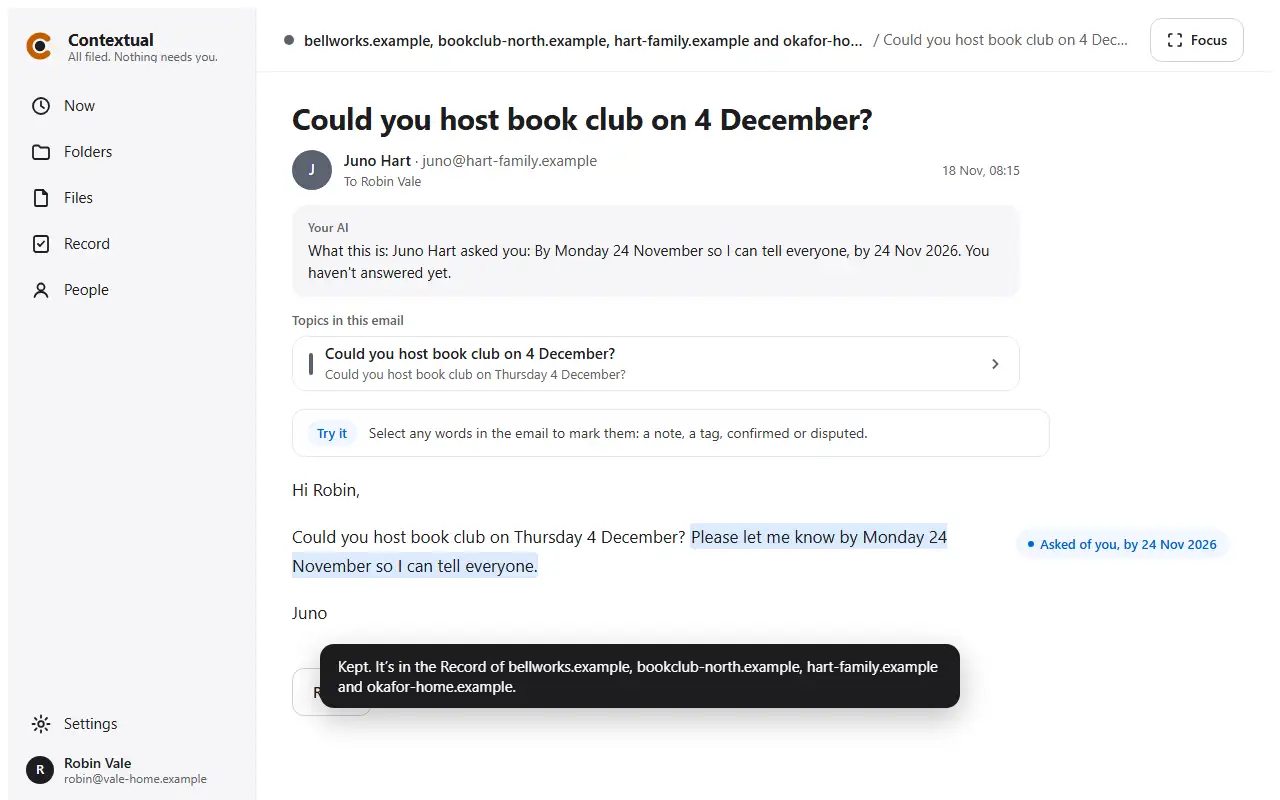
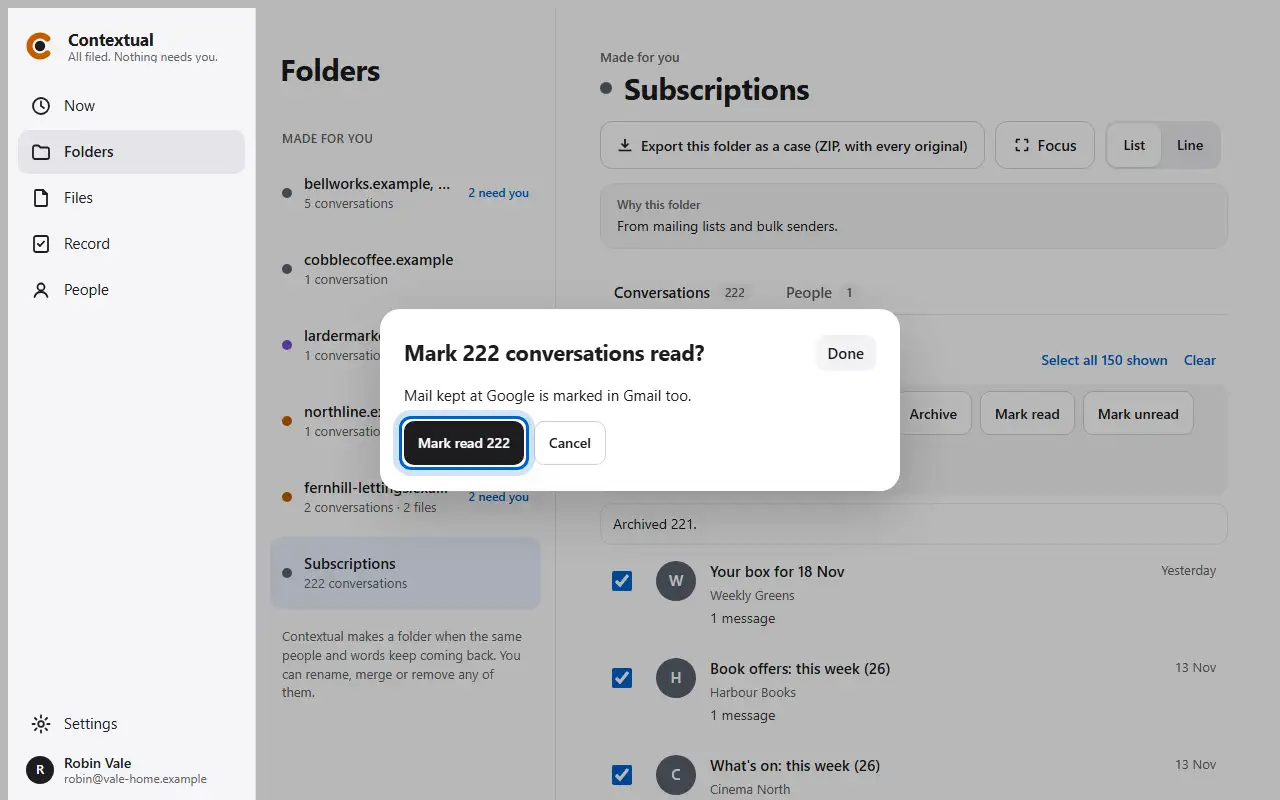
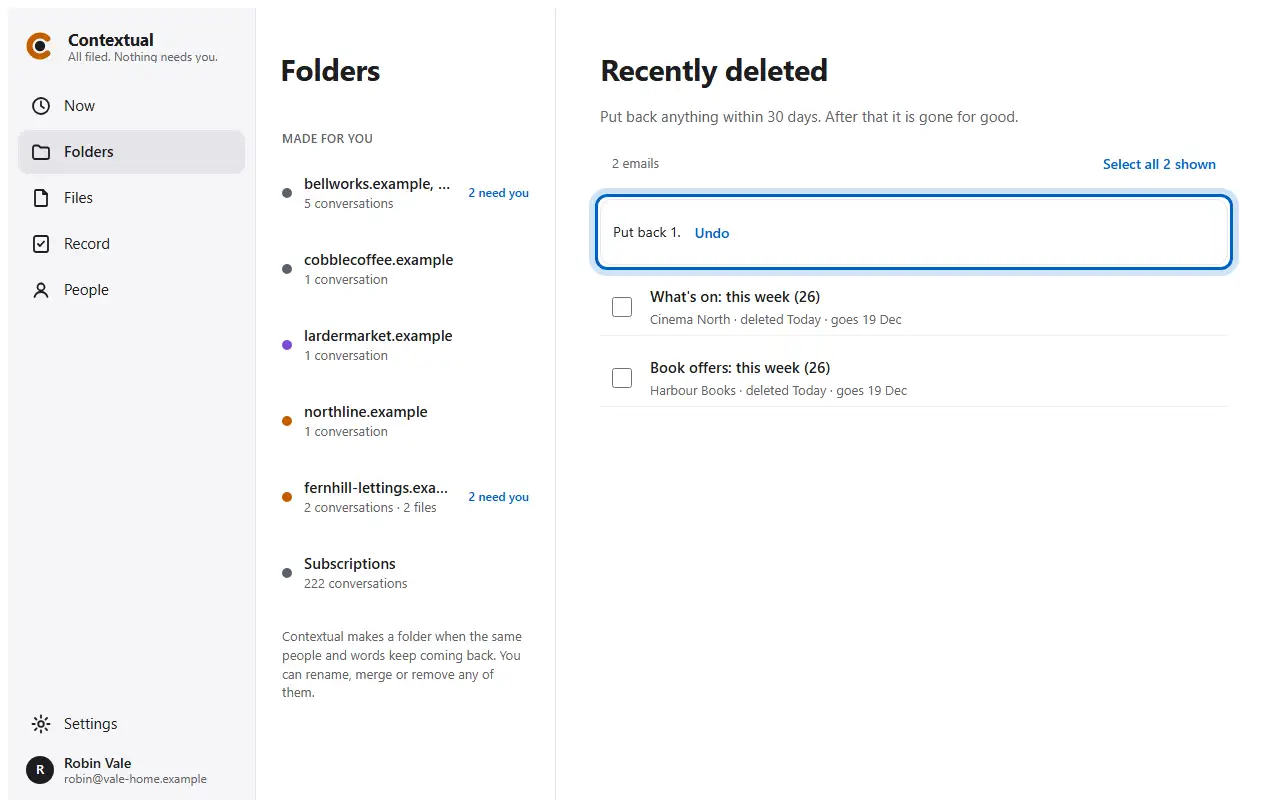
How to do each thing in Contextual, step by step, on the real app. Robin Vale's mailbox is made up: 277 emails about a lease renewal, a book club, a weekly veg box and a lot of newsletters.
Run a firm? Try it as a firm. Building on Contextual? Try it as a developer.
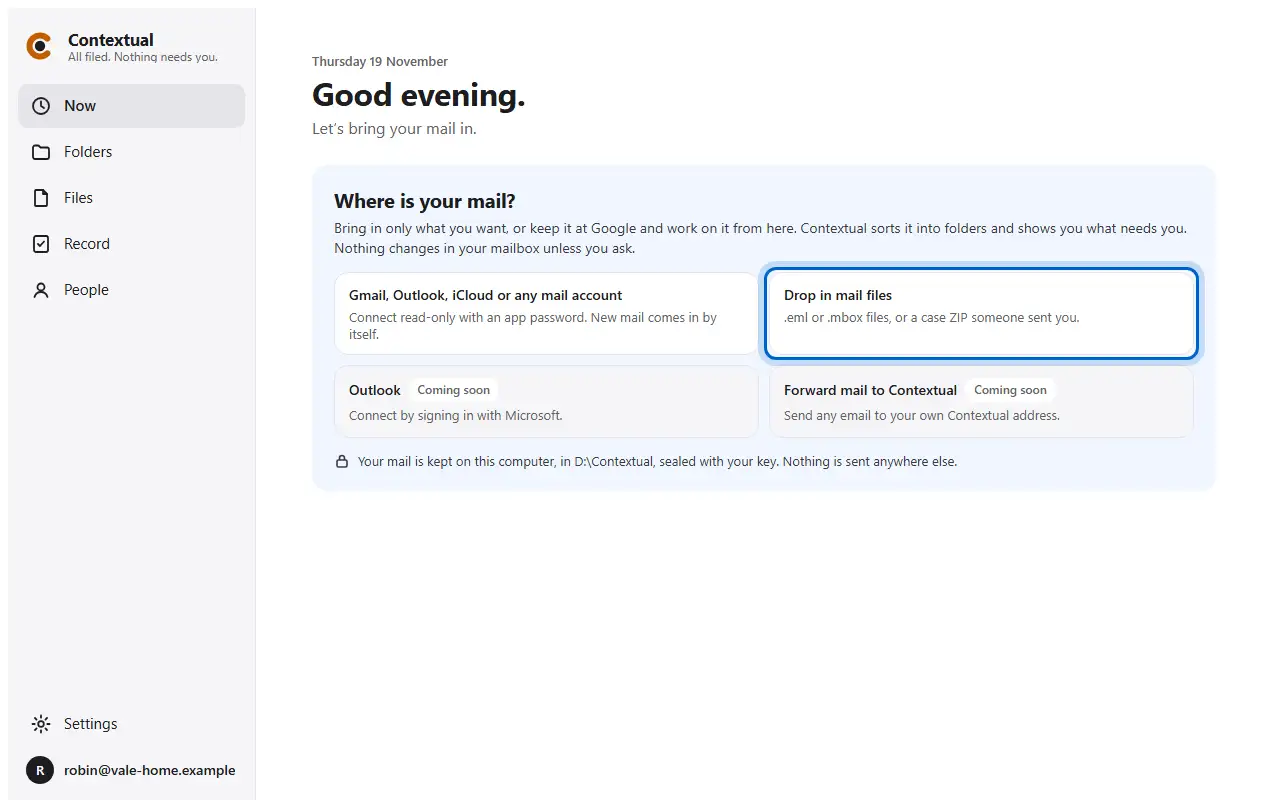
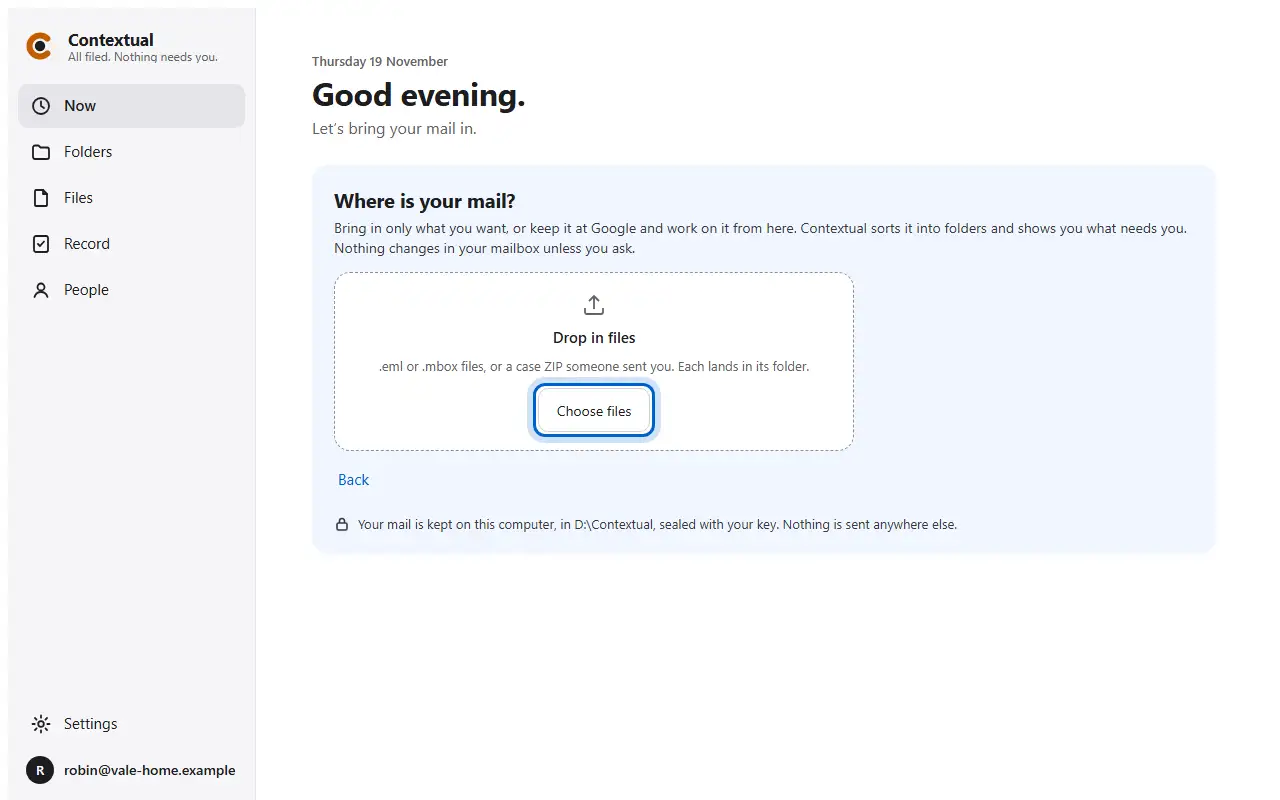
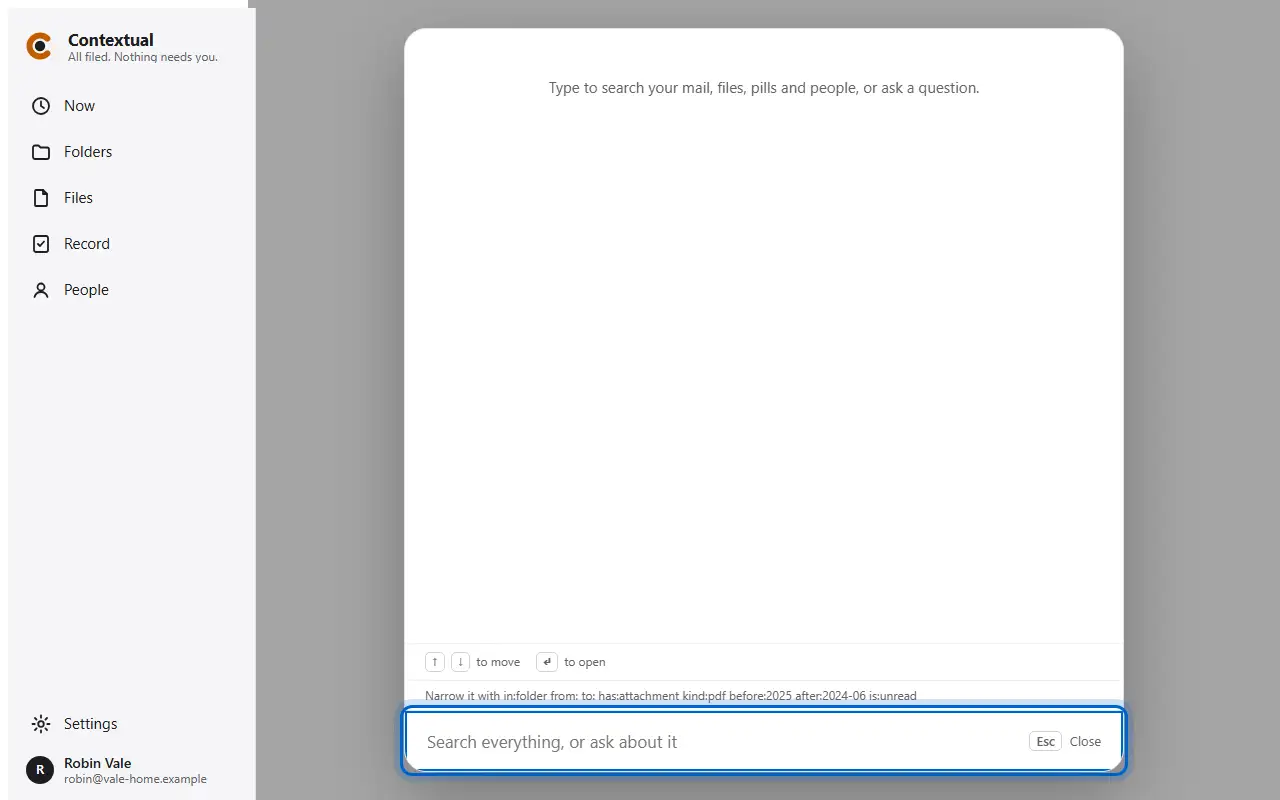
Robin, the people Robin writes to, and every email here are made up. Every screen is the real app, run on this made-up mail.
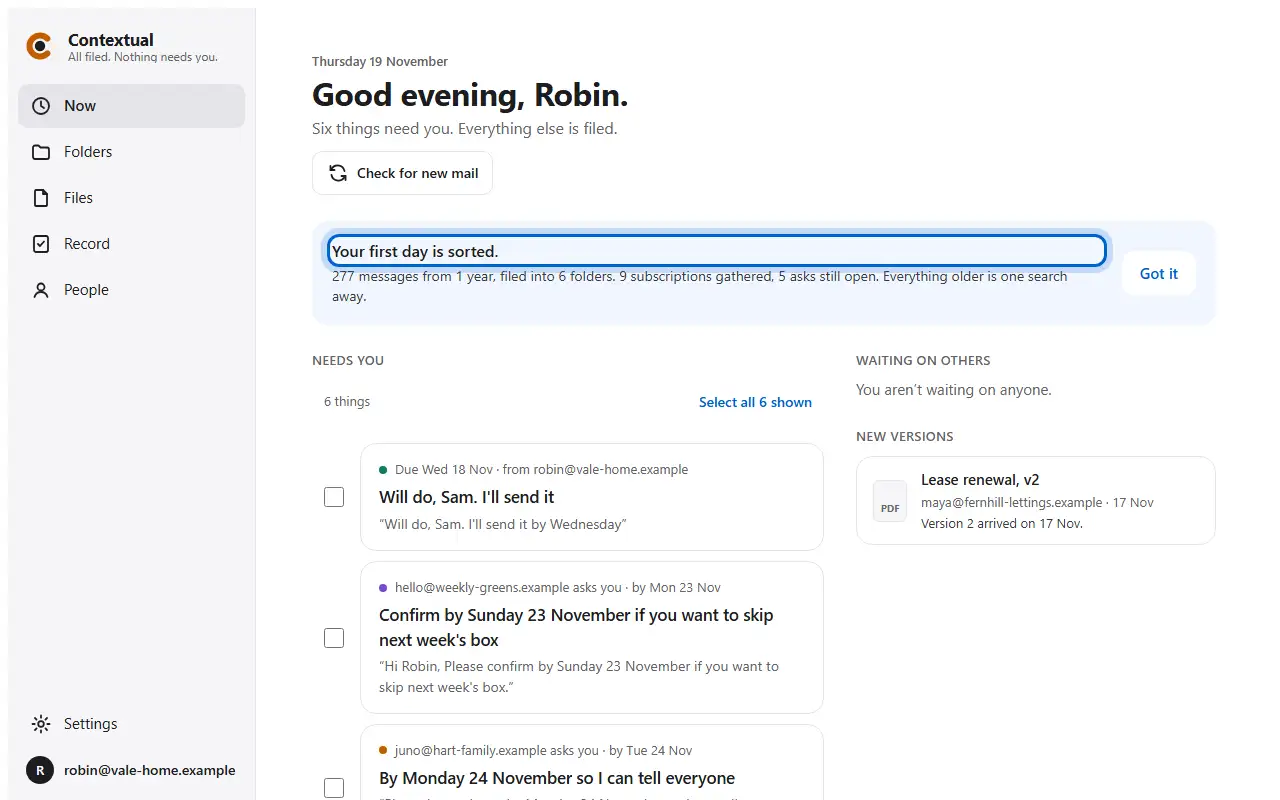
Drawn: this step needs a Gmail account, which a made-up mailbox can't have. The words are the app's own.
Drawn: this step needs a Gmail account, which a made-up mailbox can't have. The words are the app's own.
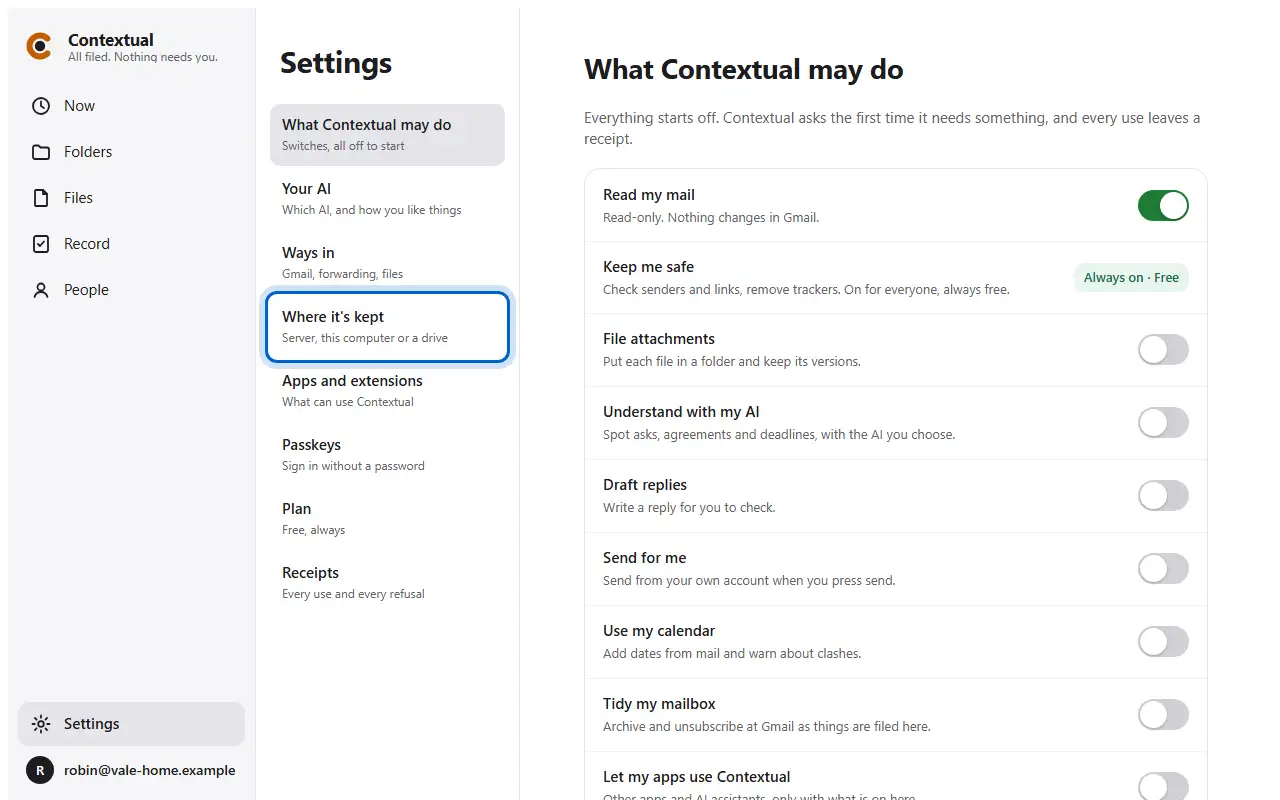
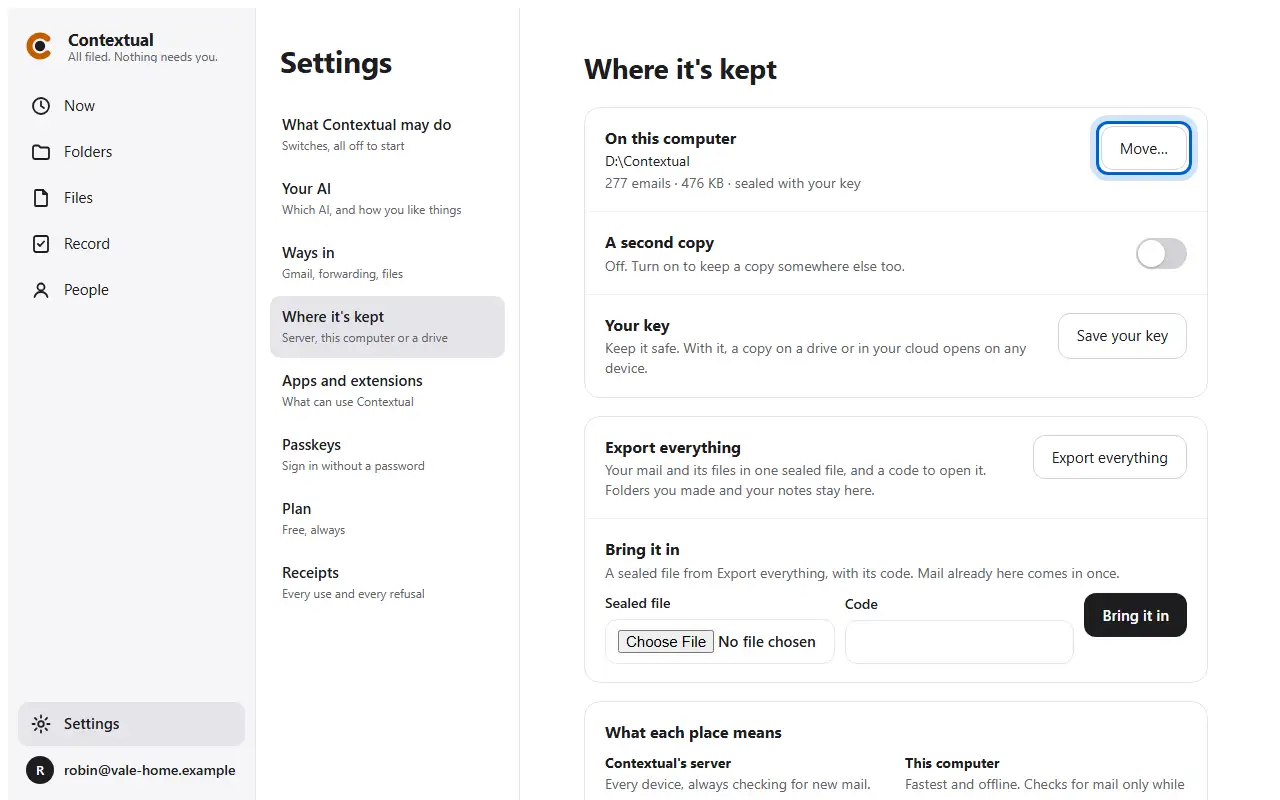
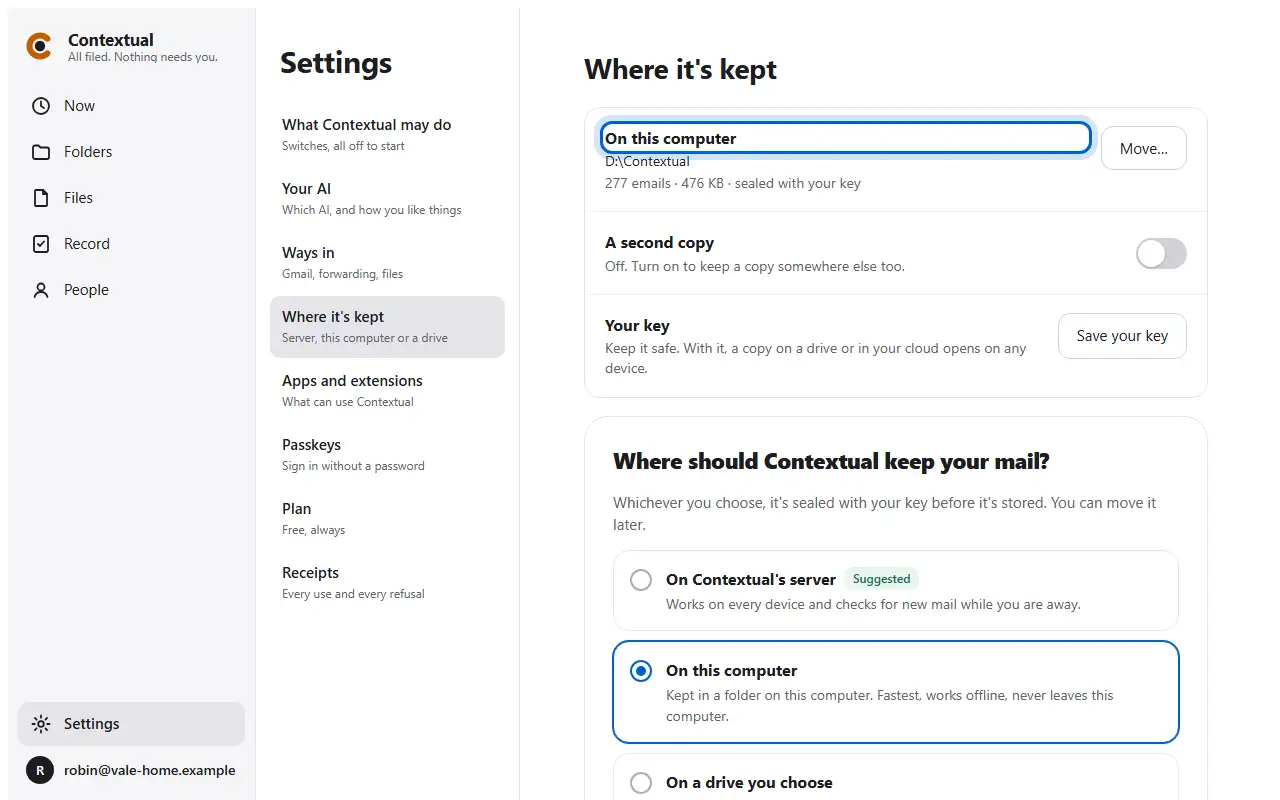
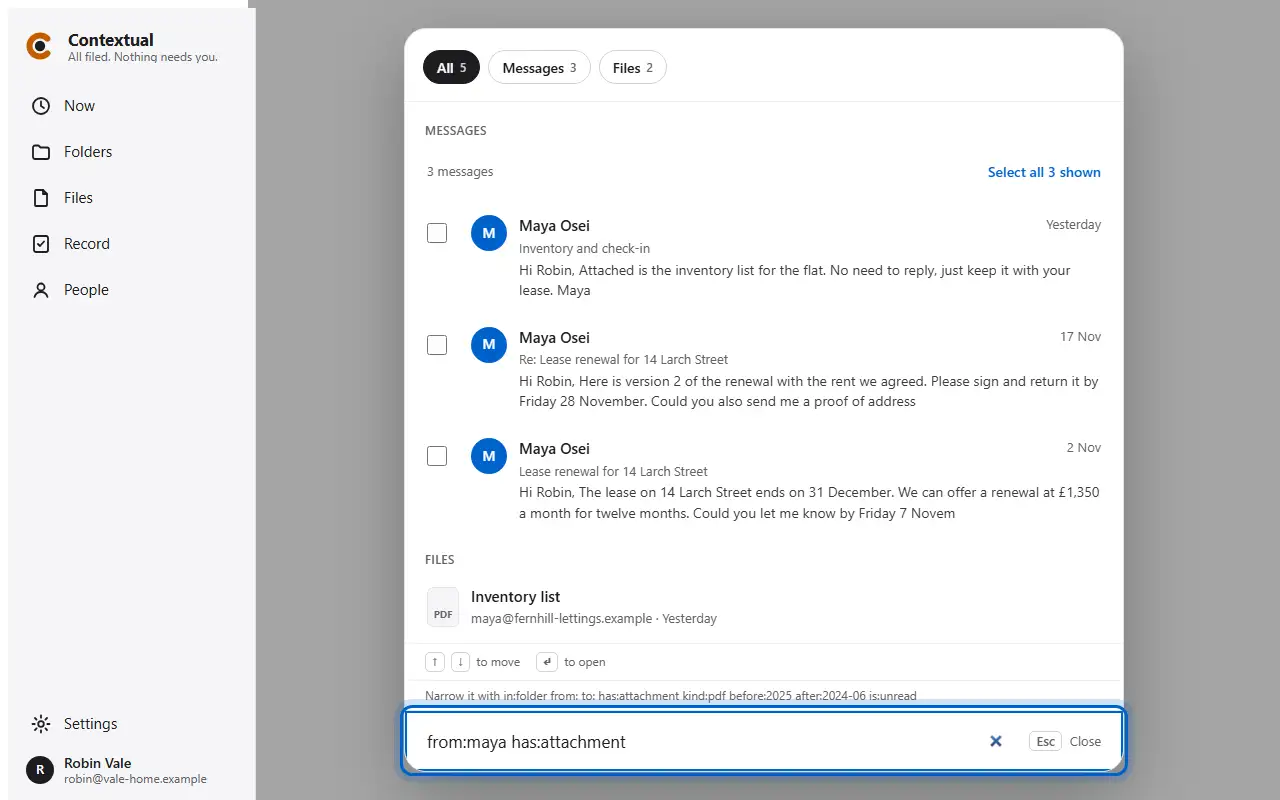
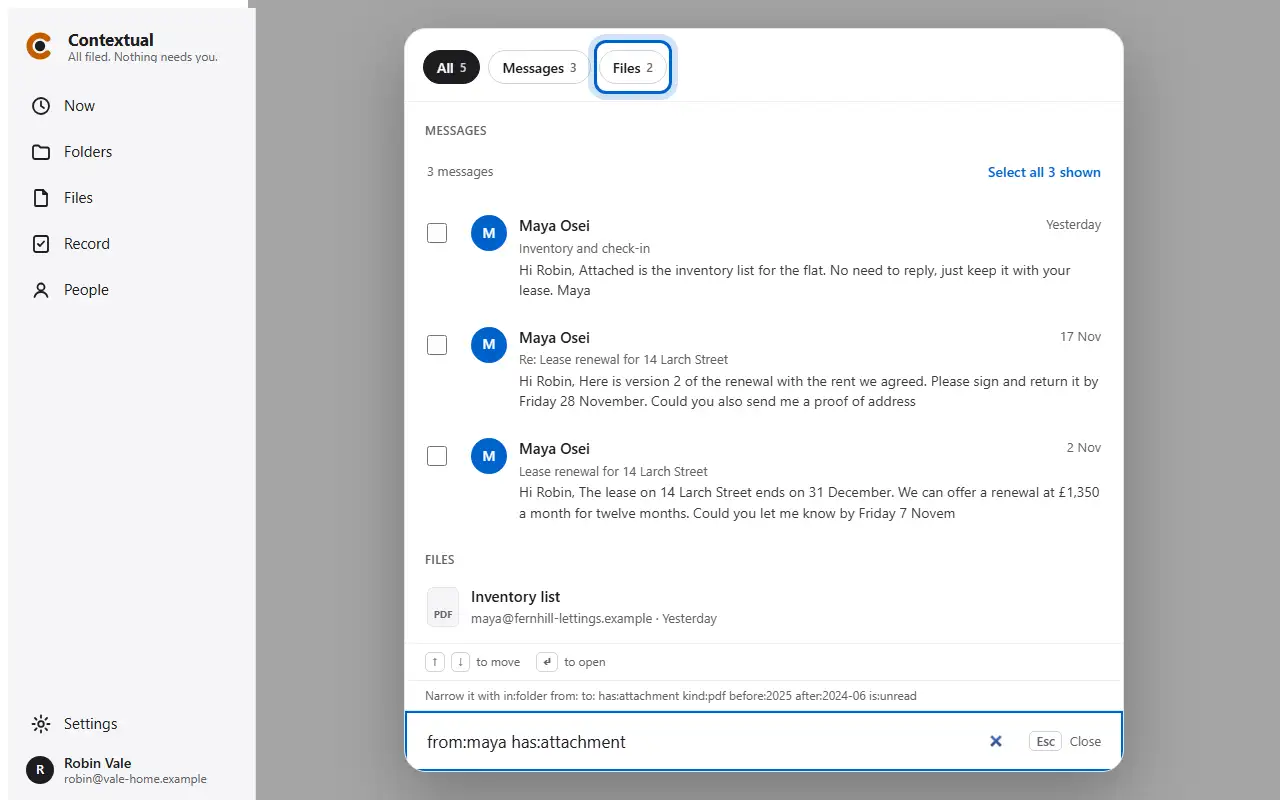
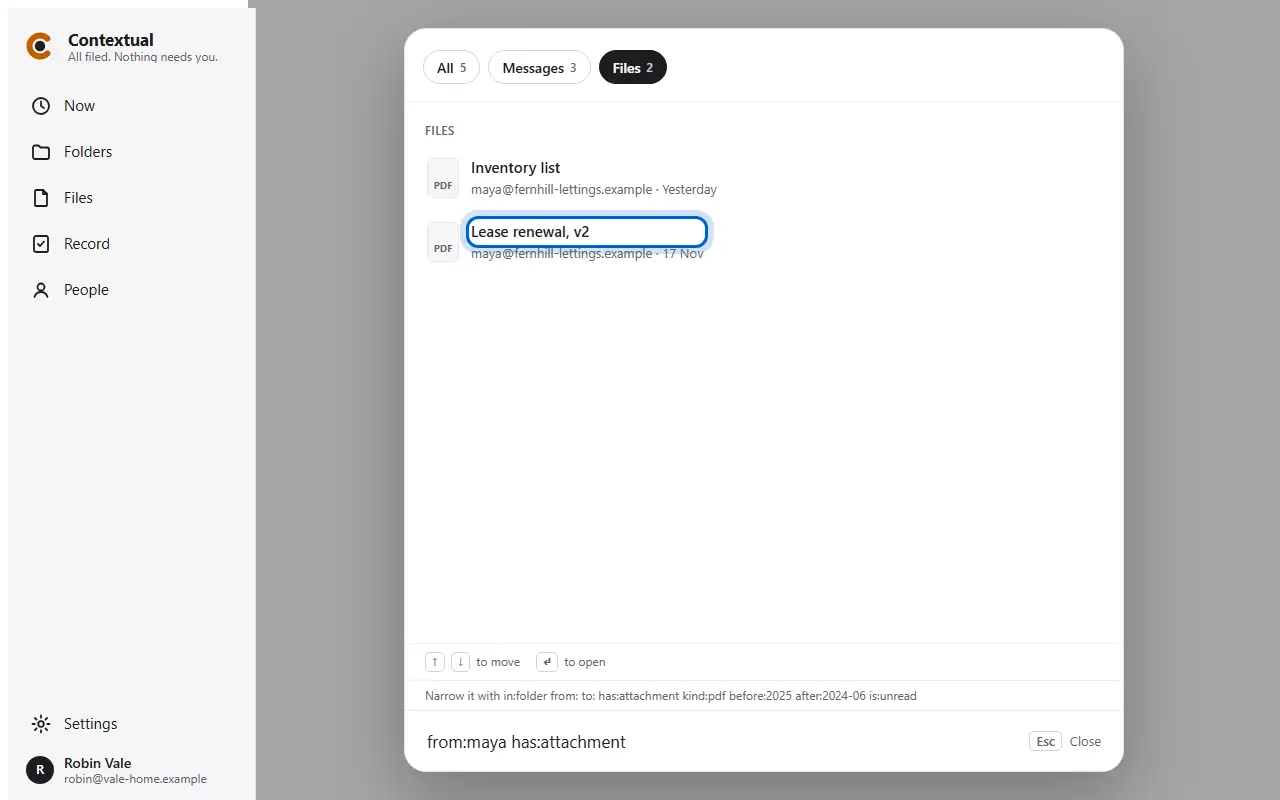
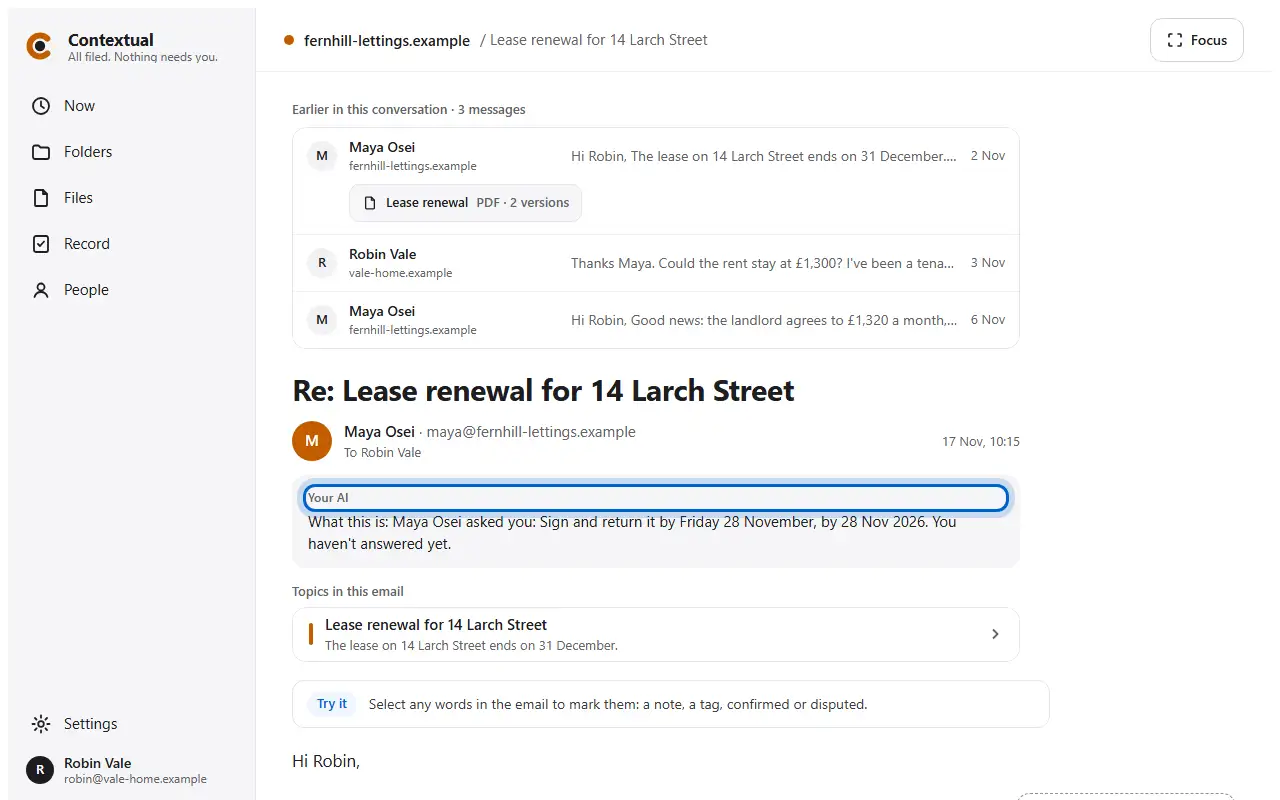
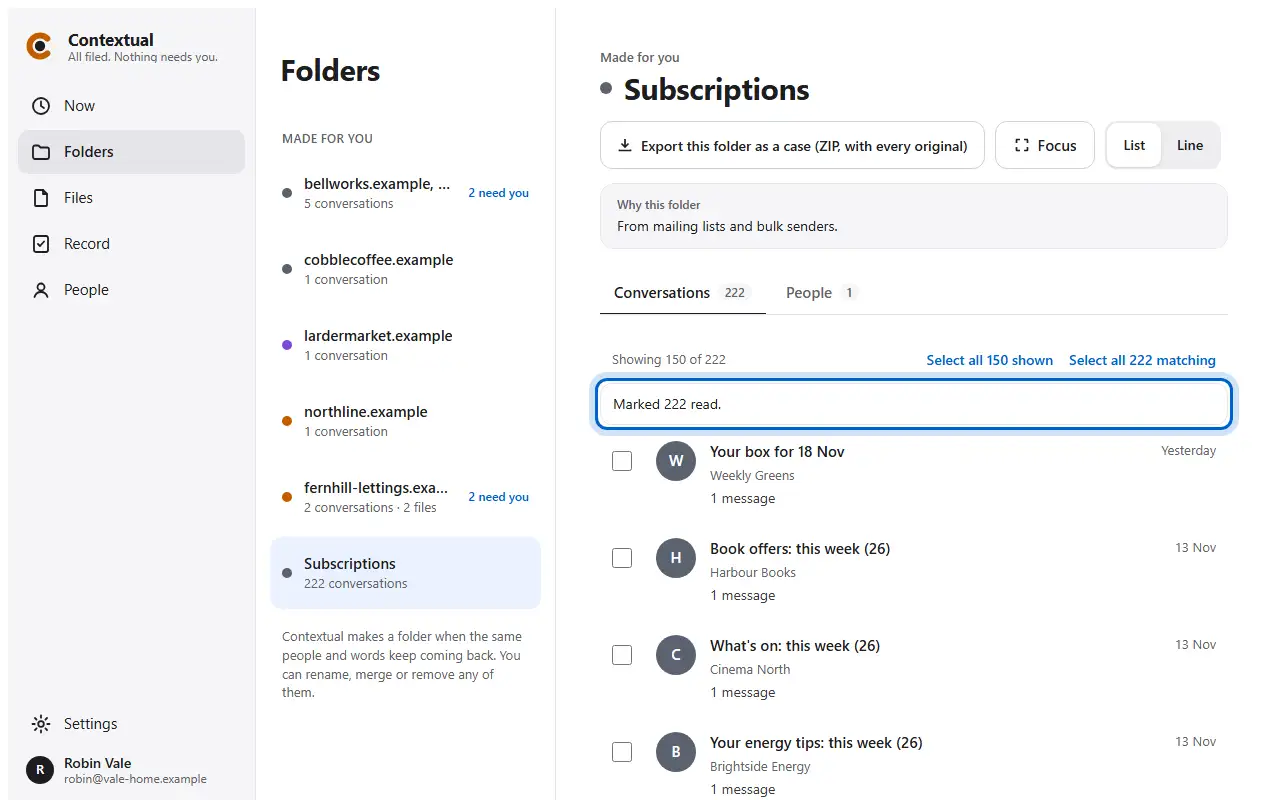
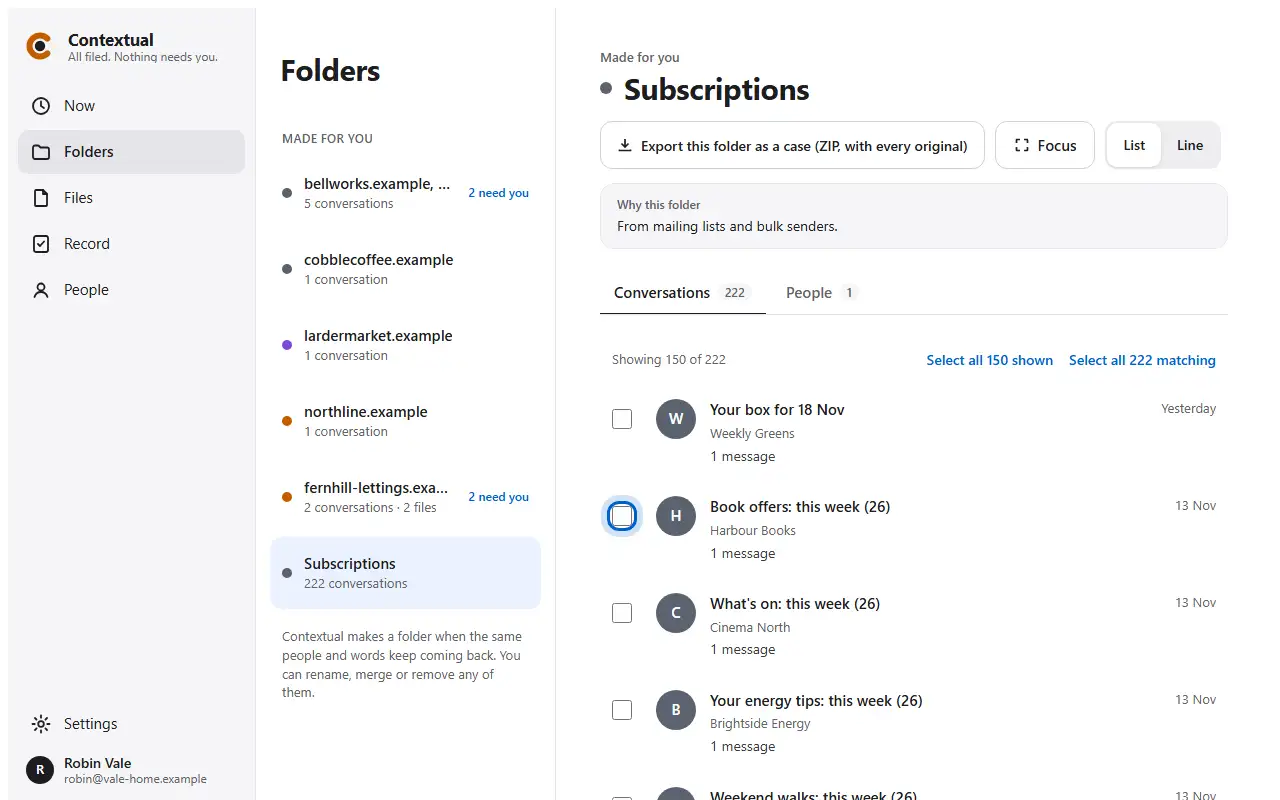
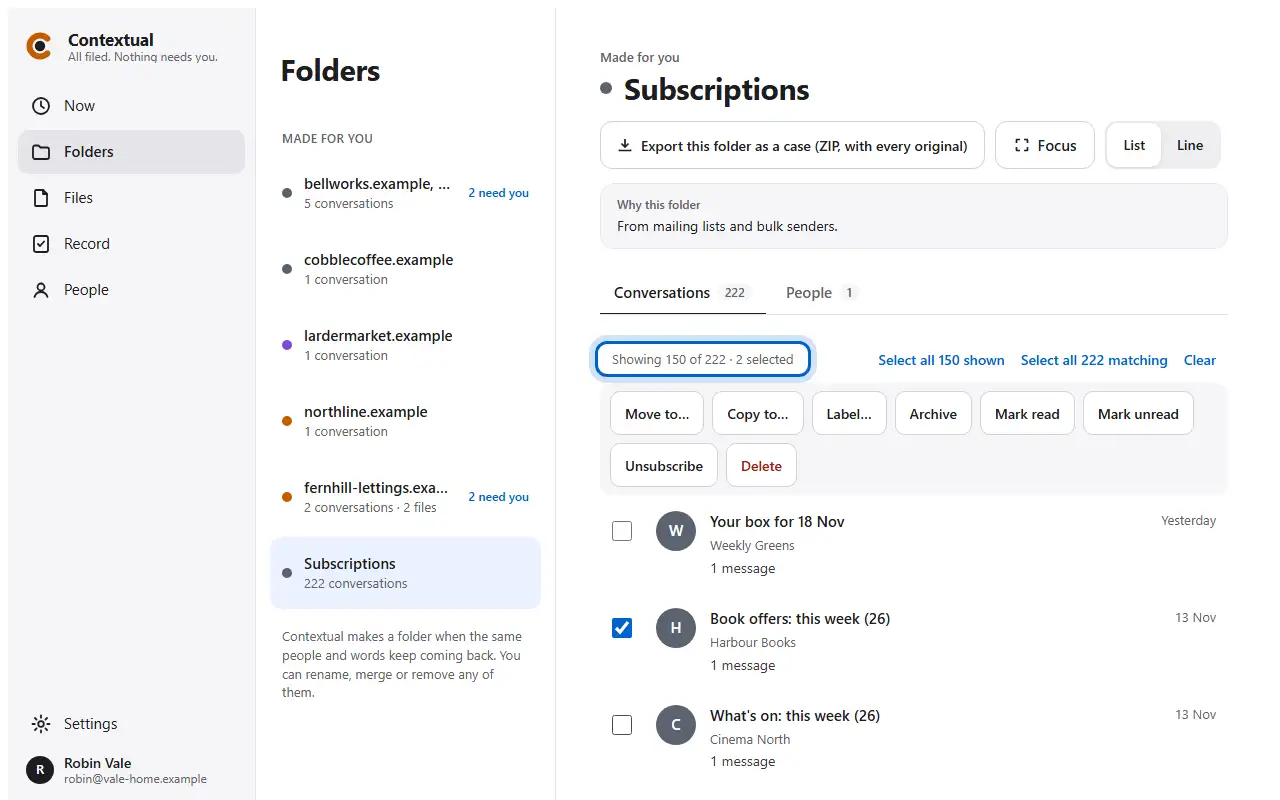
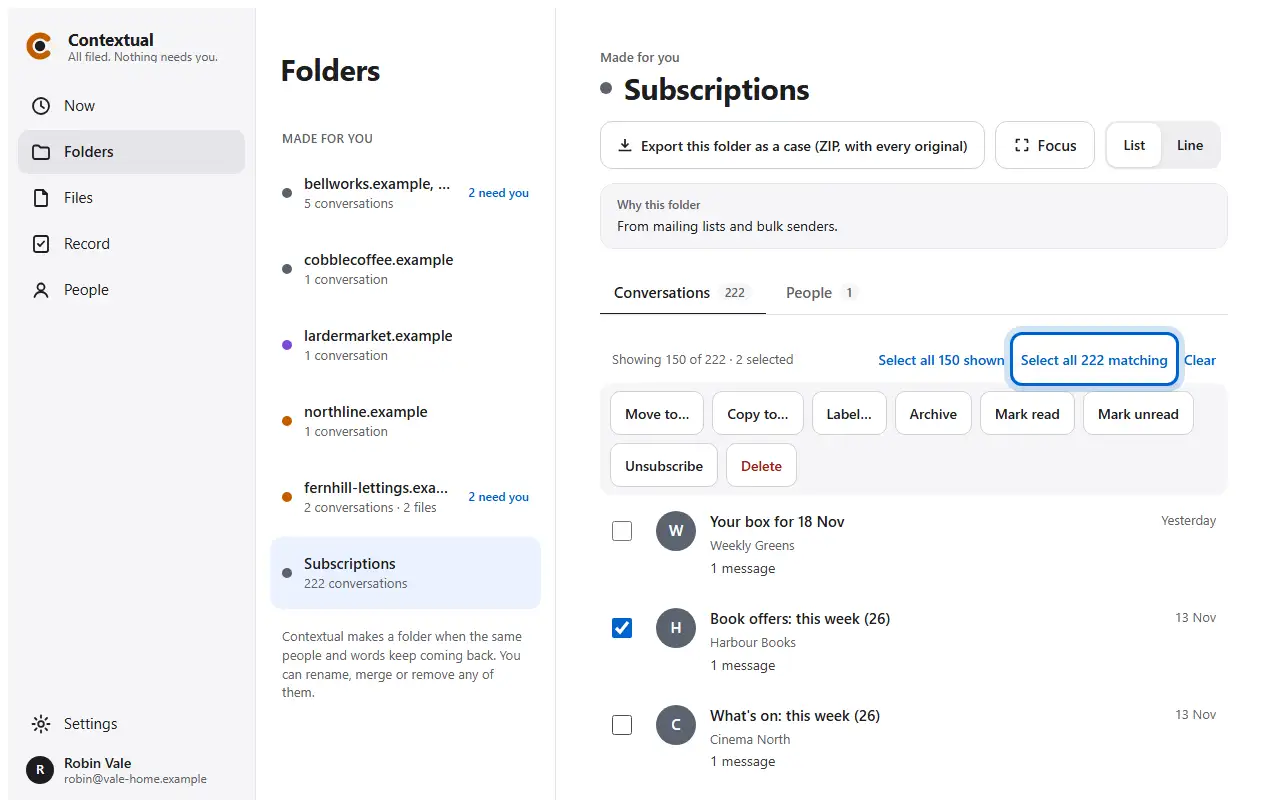
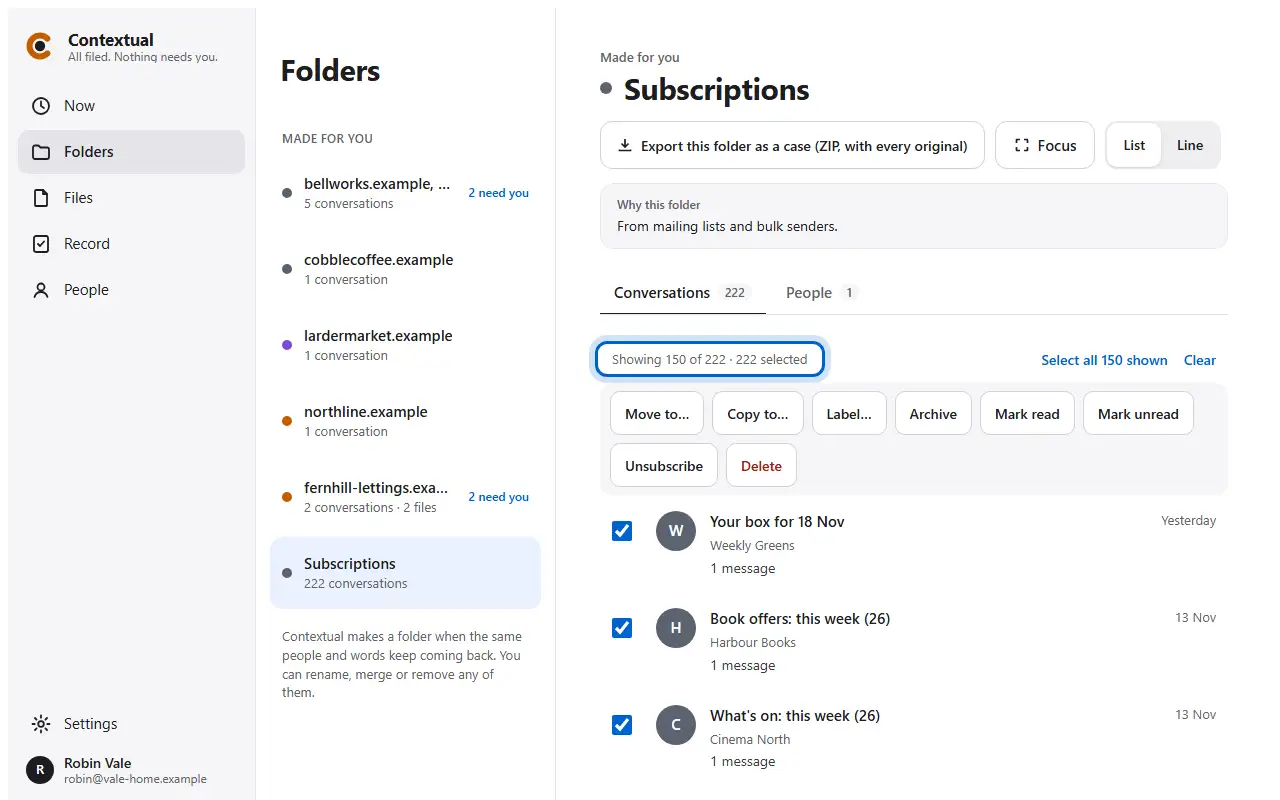
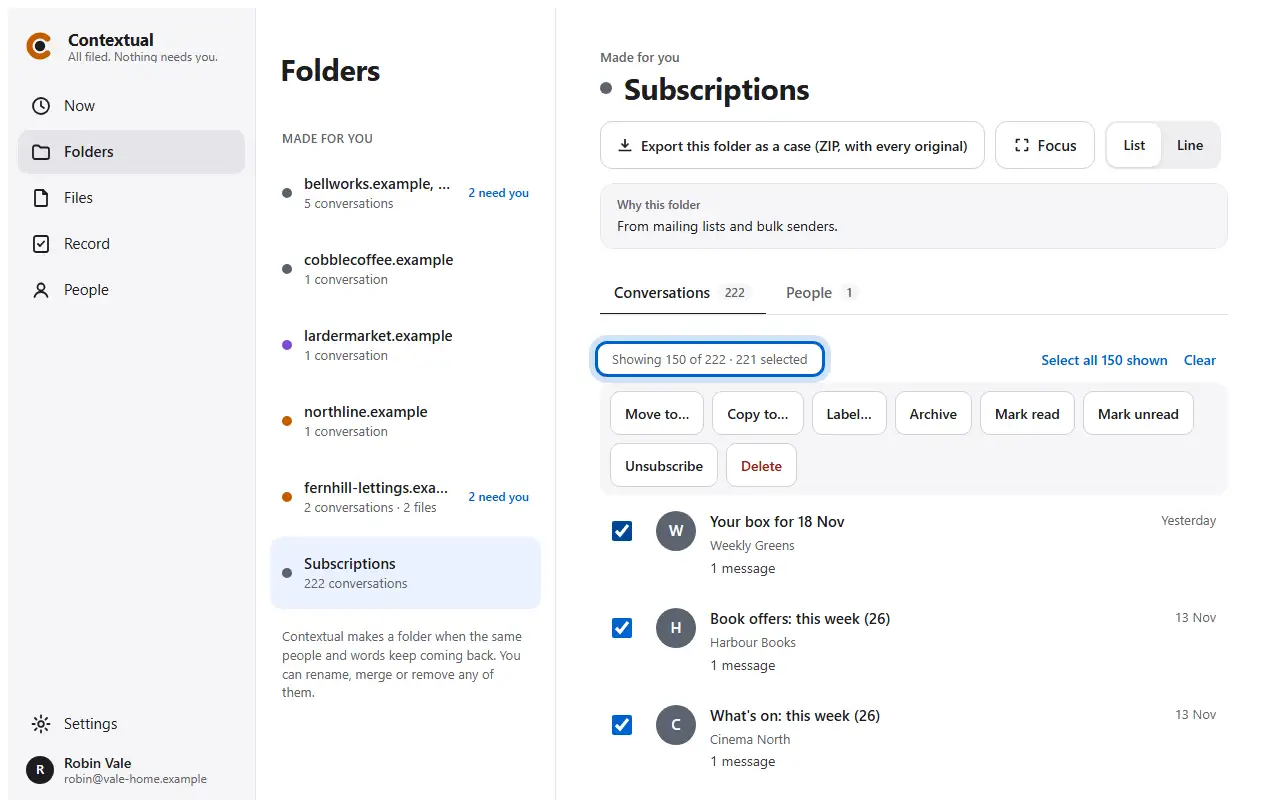
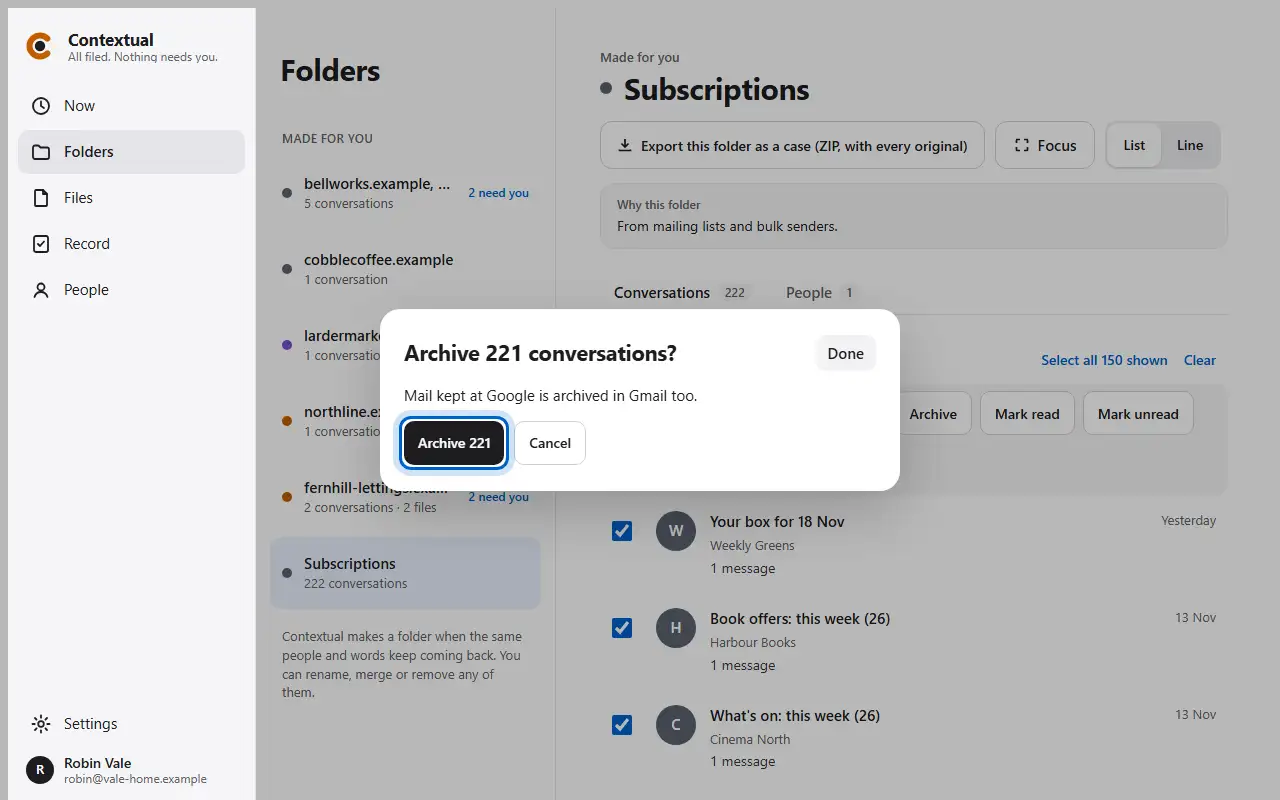
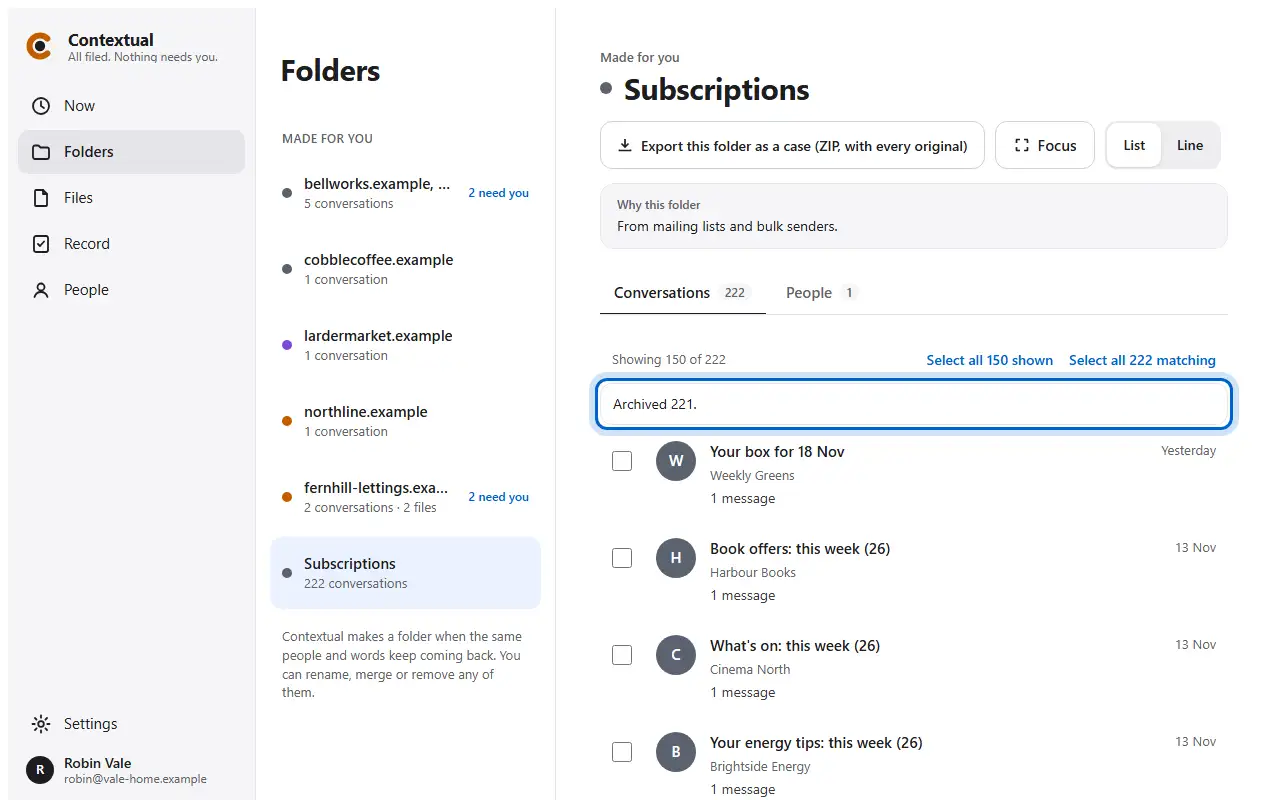
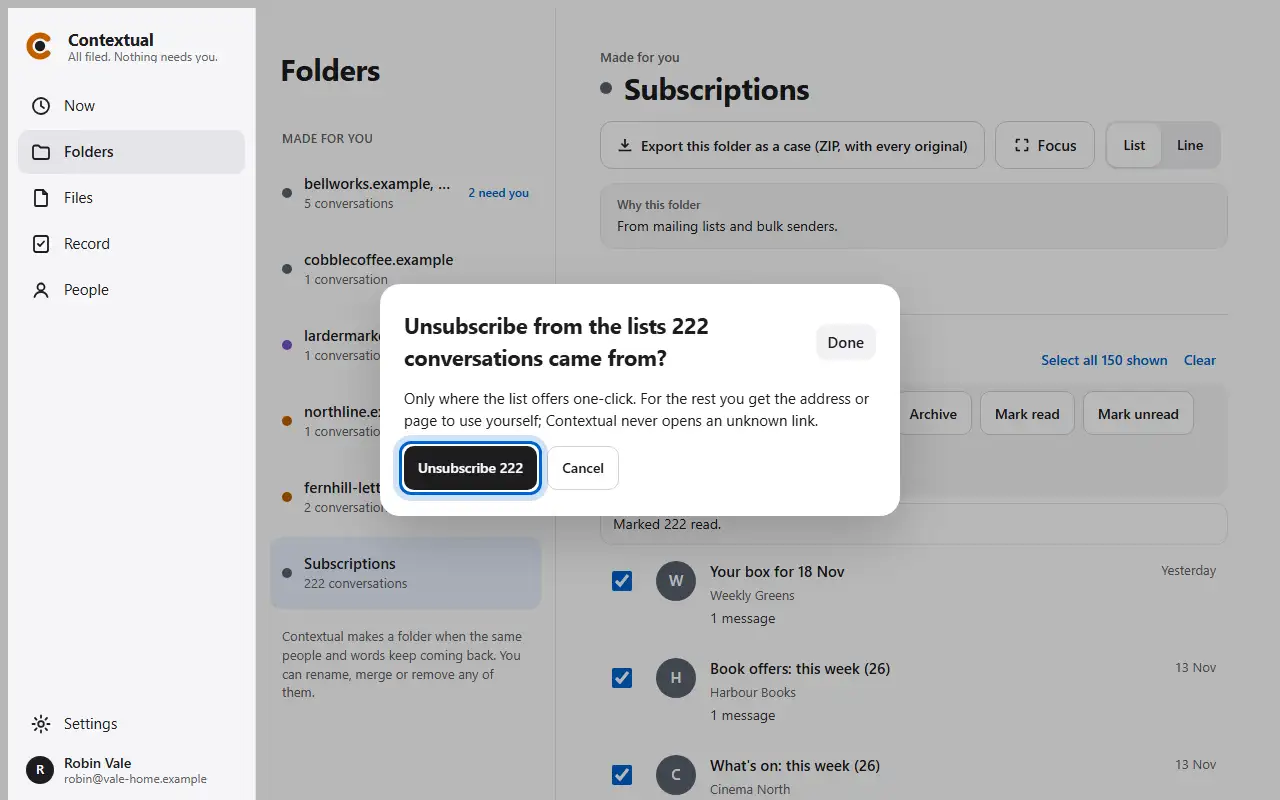
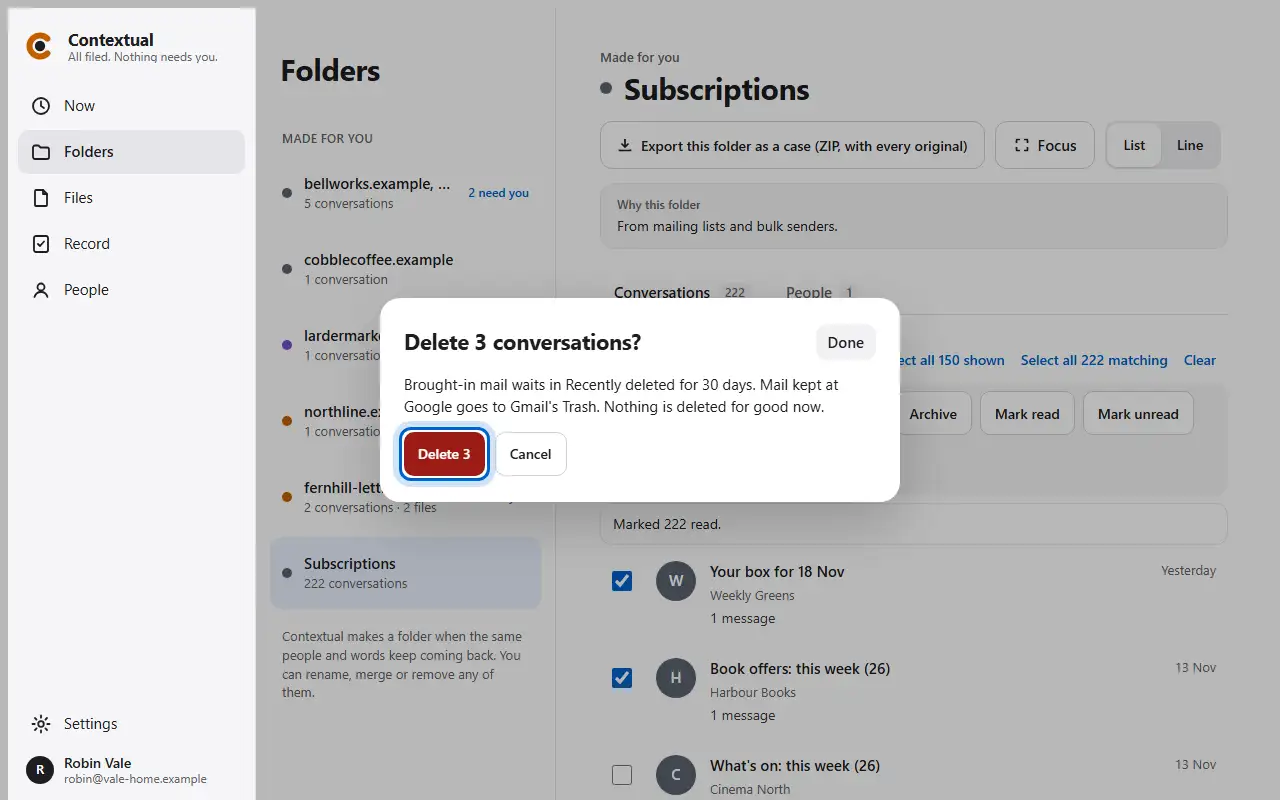
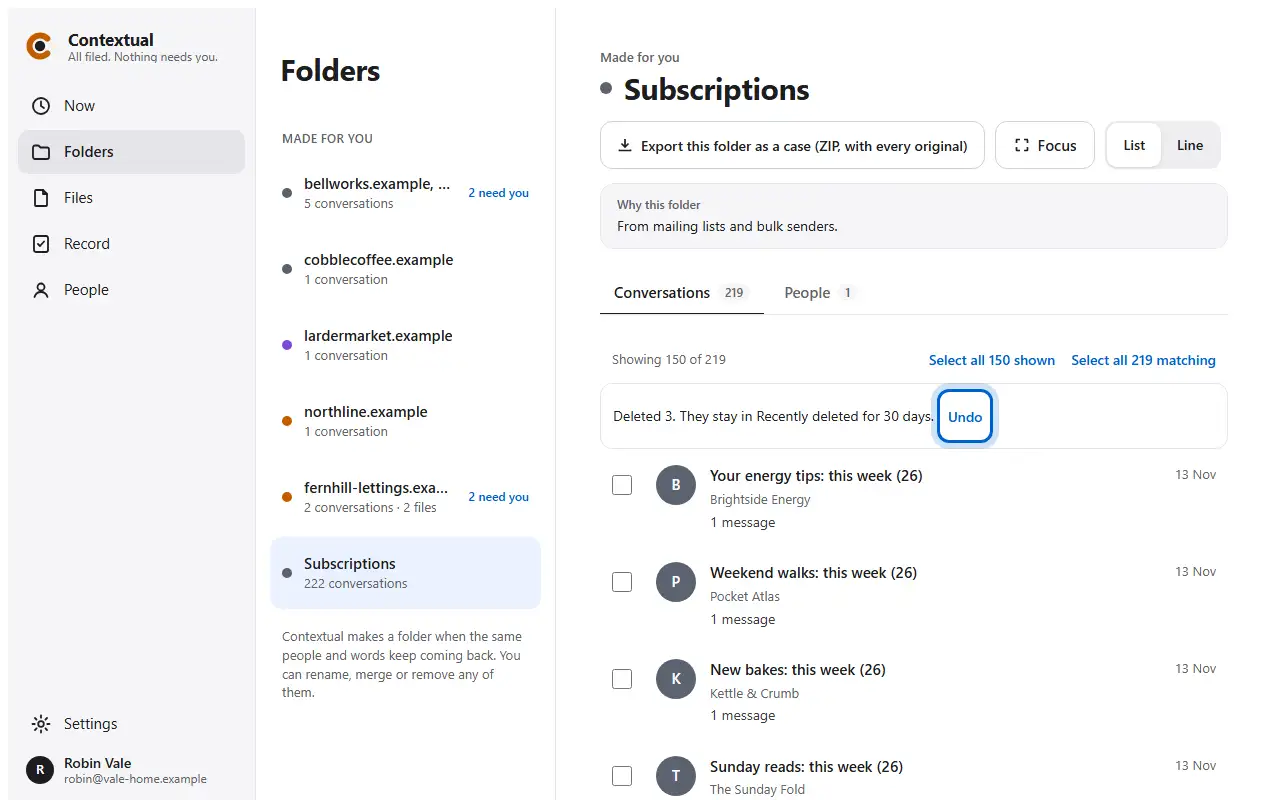
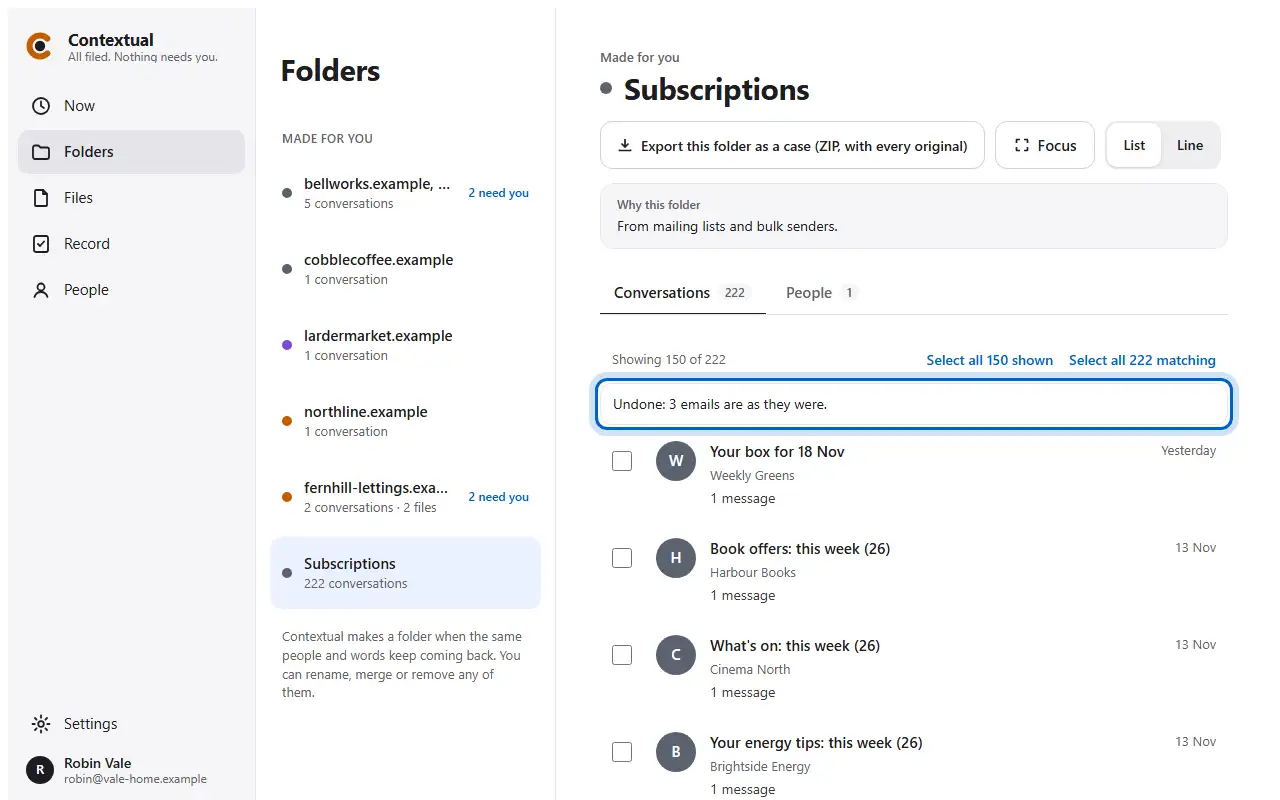
Drawn: this step needs a Gmail account, which a made-up mailbox can't have. The words are the app's own.
Drawn: this step needs a Gmail account, which a made-up mailbox can't have. The words are the app's own.
Drawn: this step needs a Gmail account, which a made-up mailbox can't have. The words are the app's own.
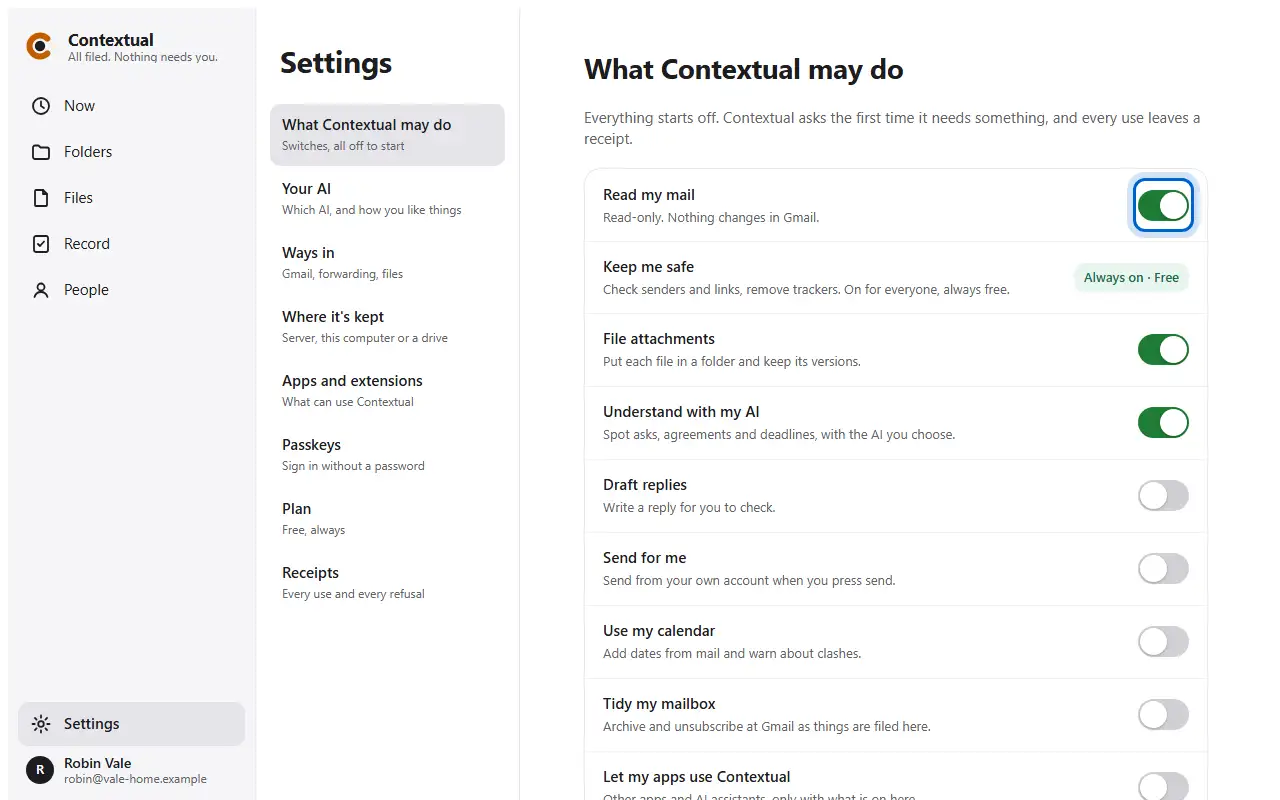
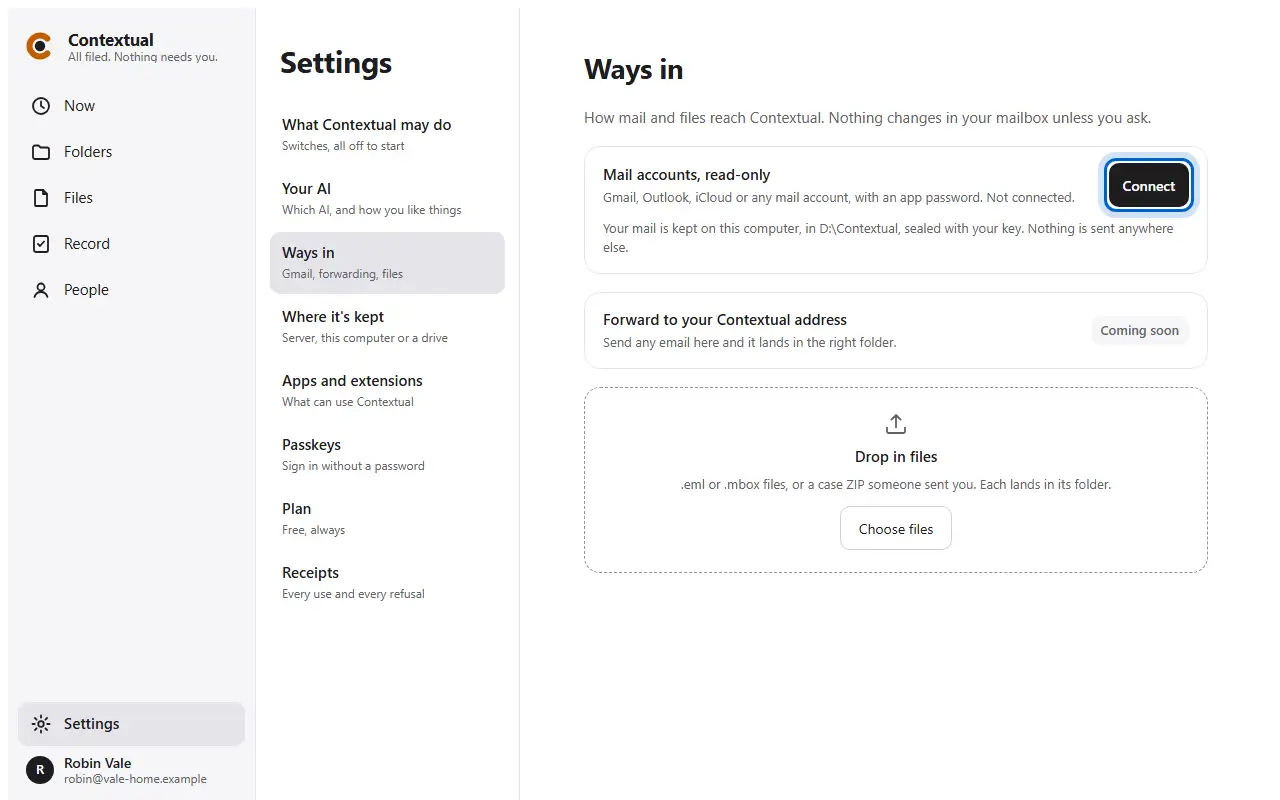
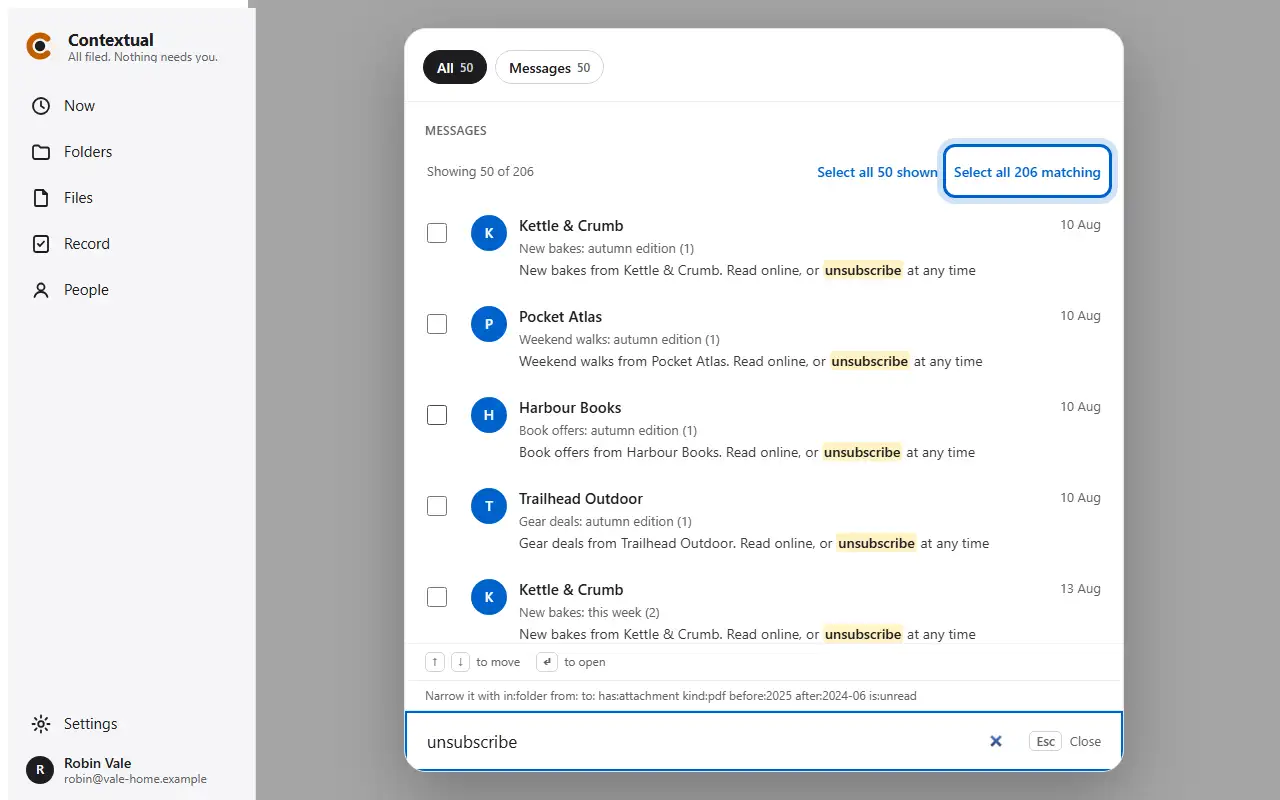
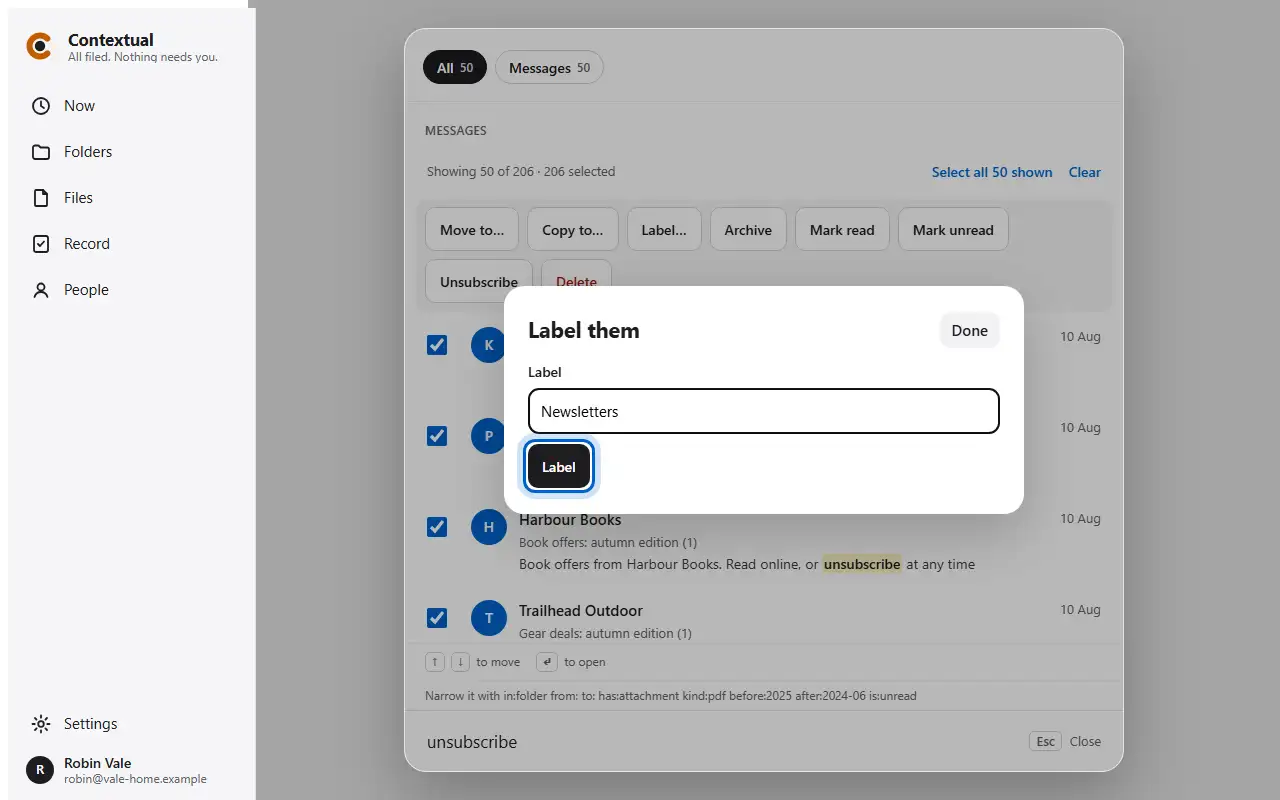
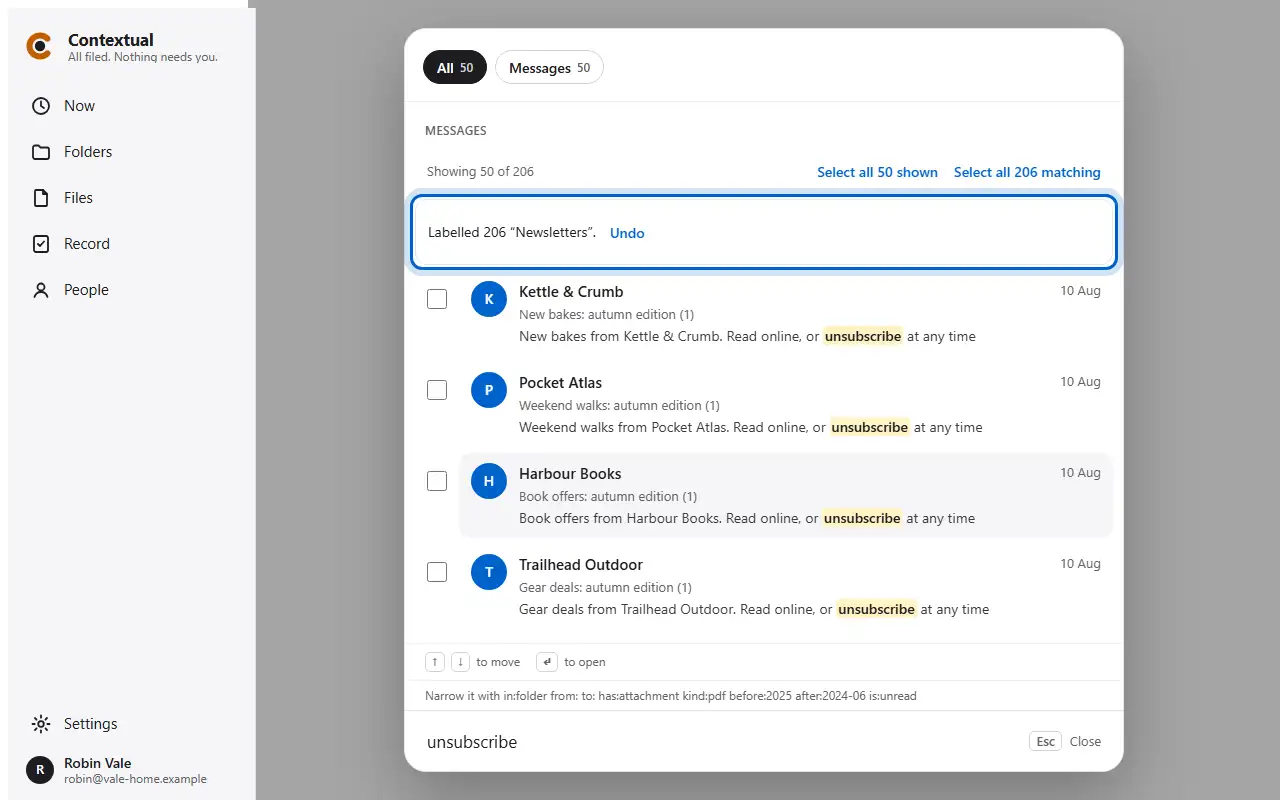
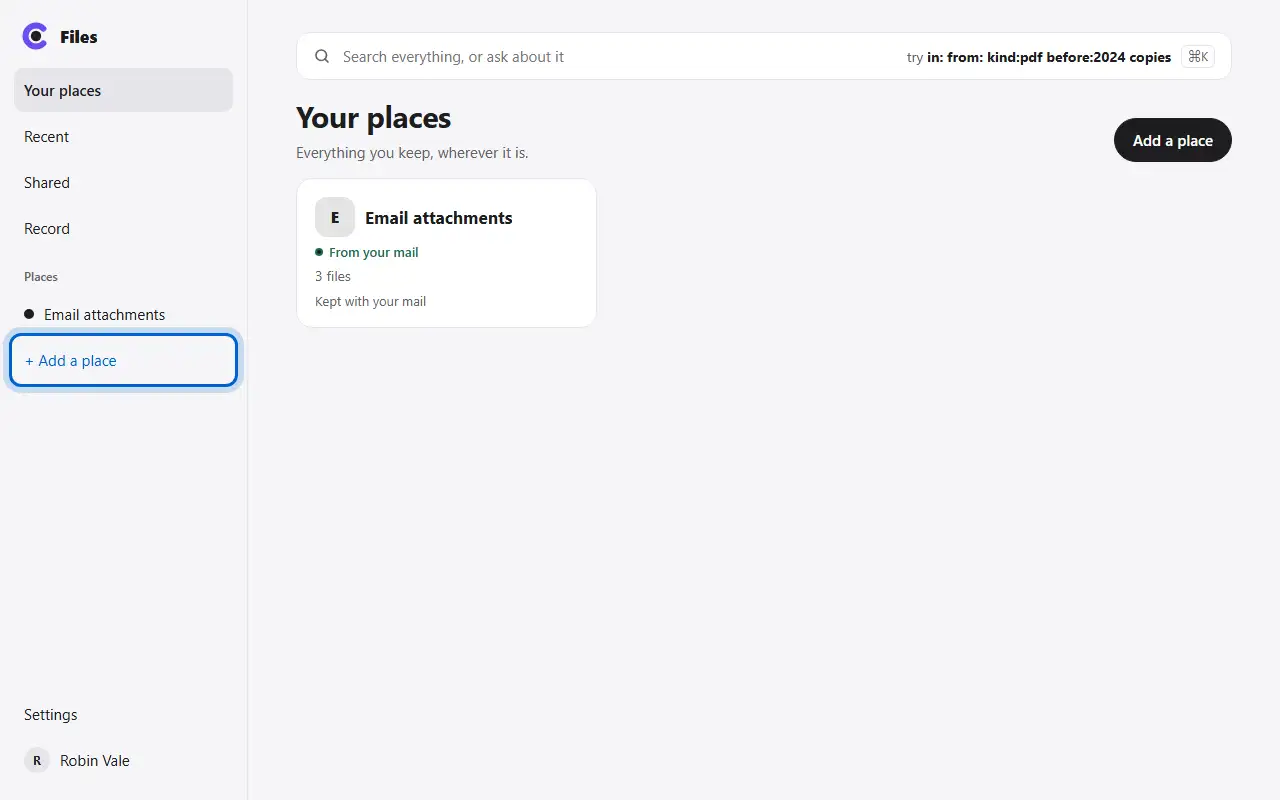
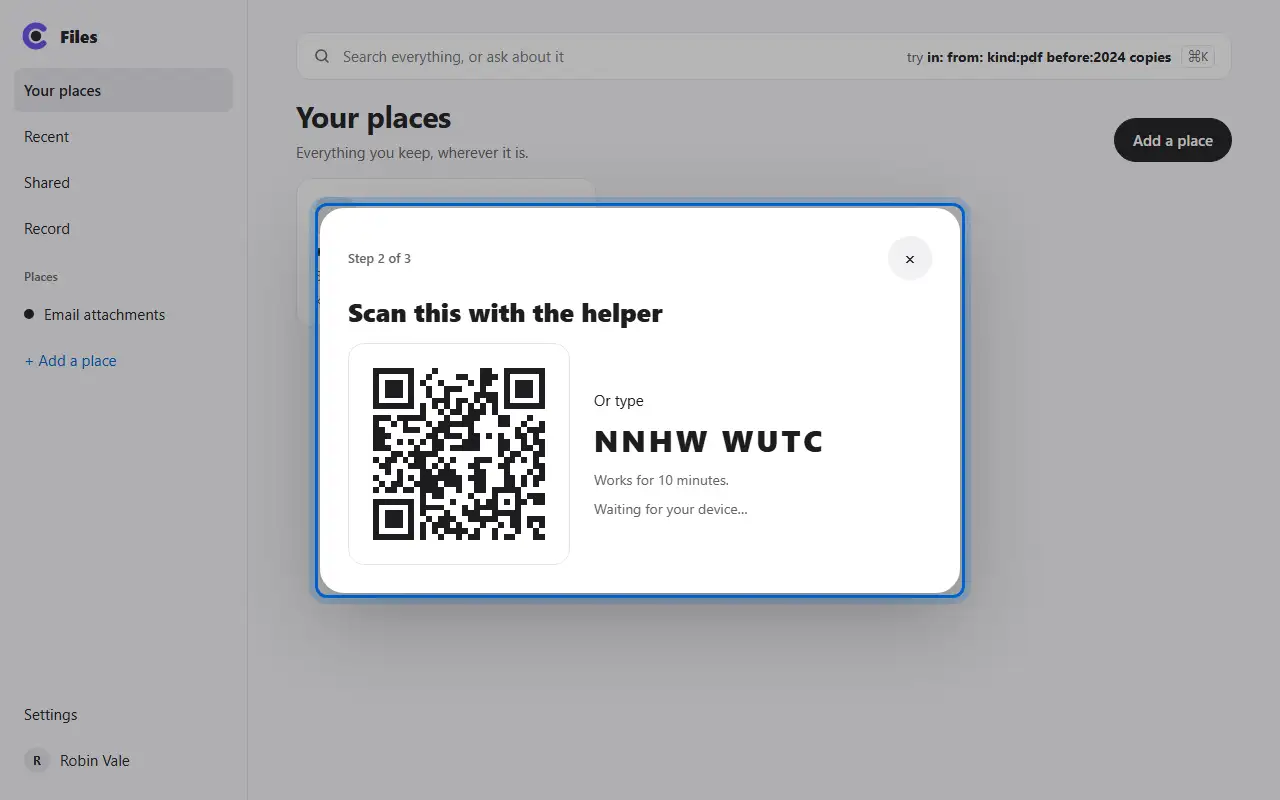
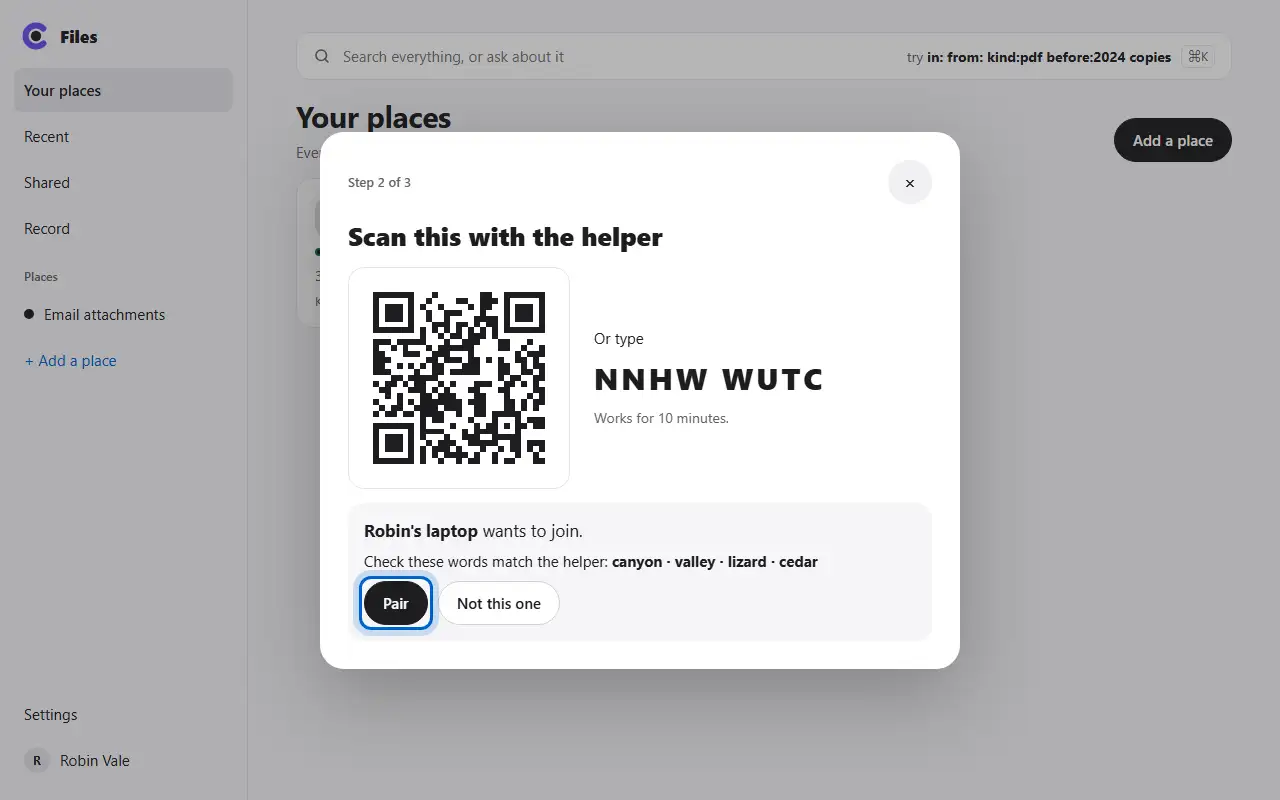
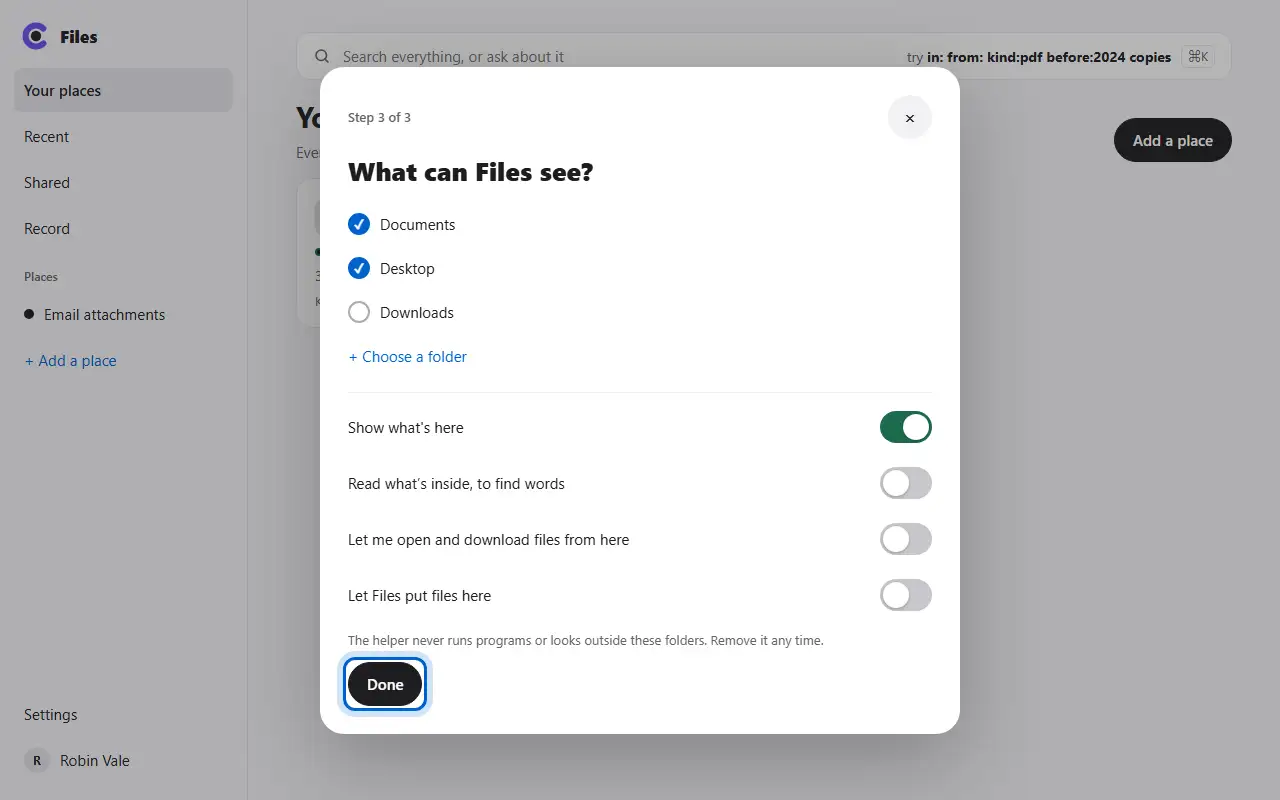
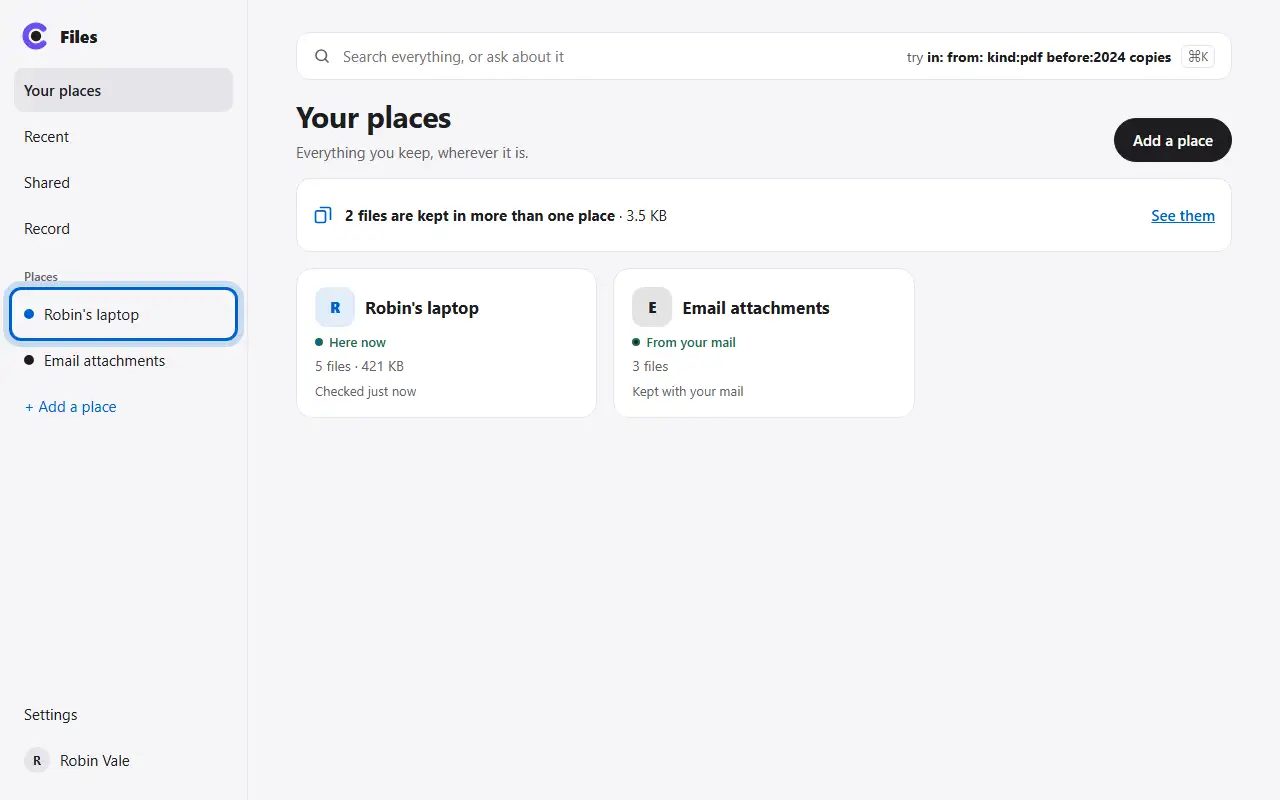
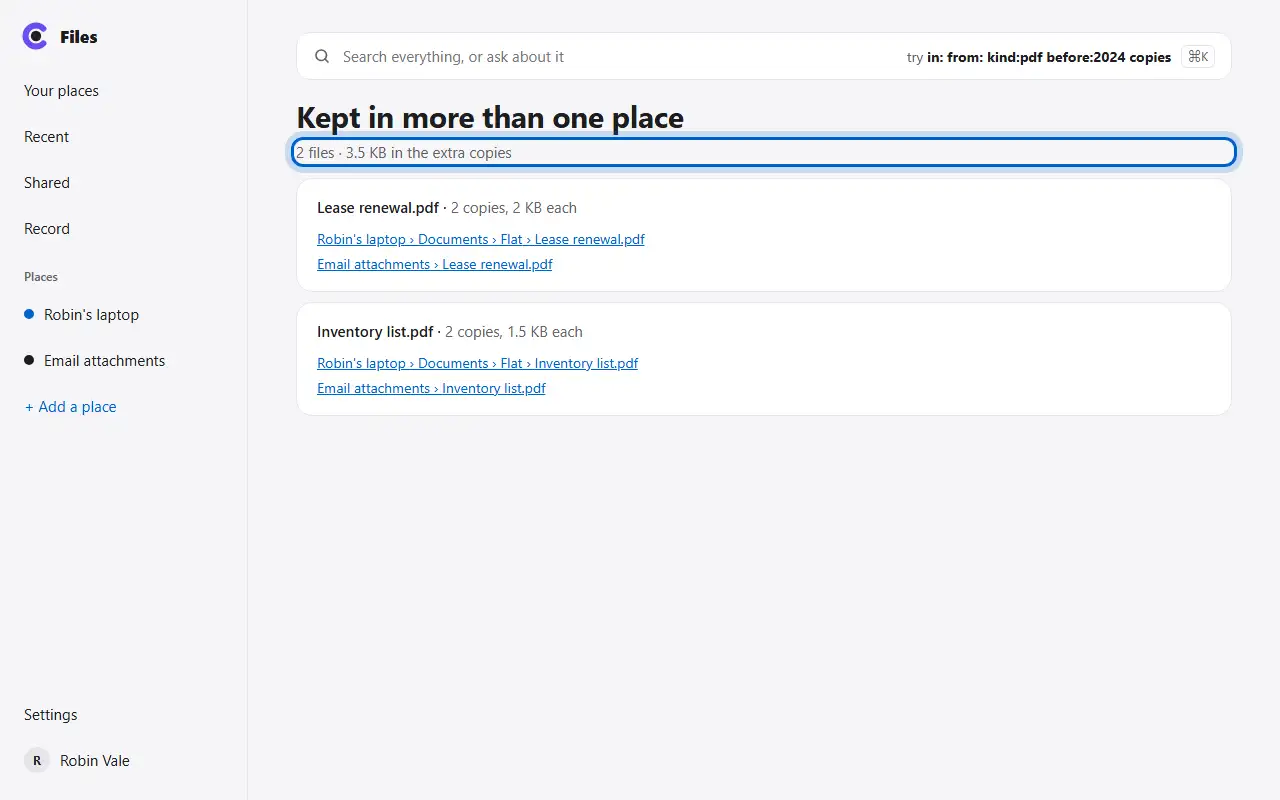
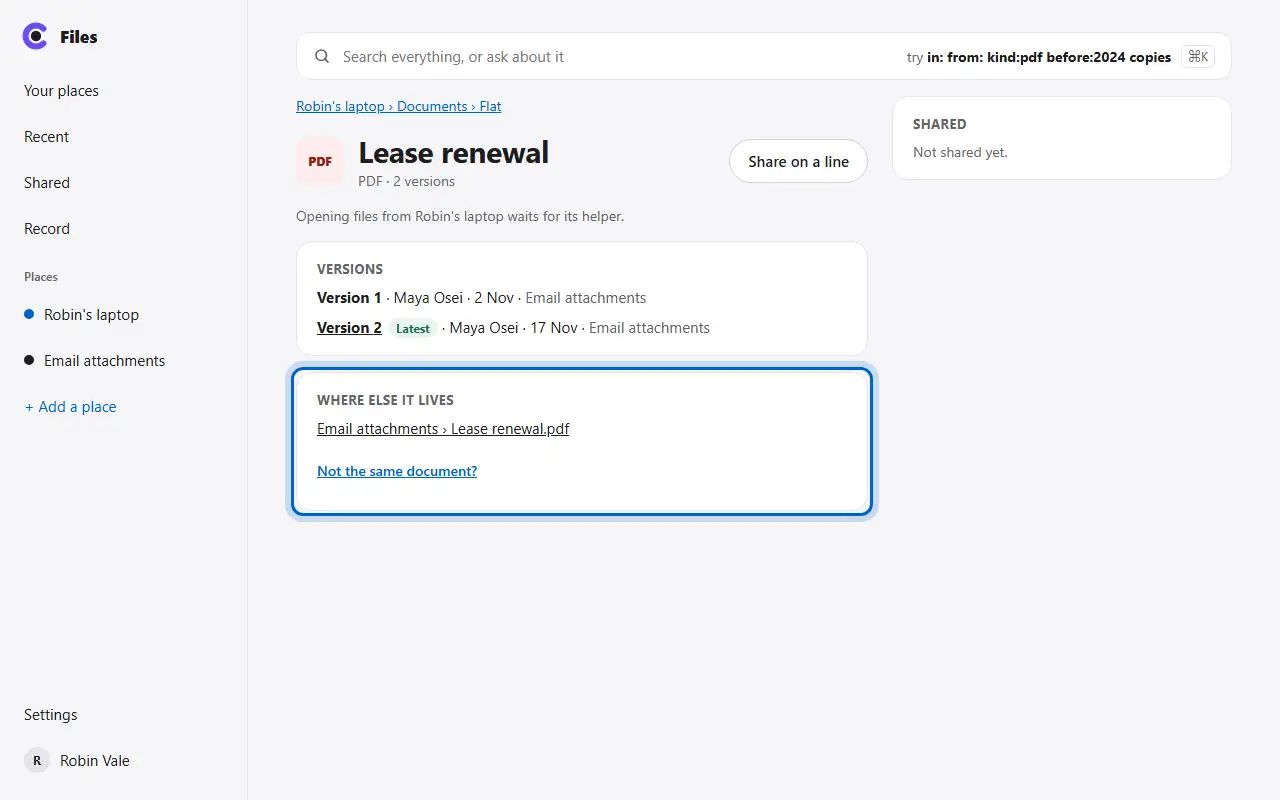
Drawn: this step needs a Gmail account, which a made-up mailbox can't have. The words are the app's own.
Drawn: this step needs a Gmail account, which a made-up mailbox can't have. The words are the app's own.
Drawn: a bring-in runs in the background from a mail account, which a made-up mailbox can't have. The words are the app's own.
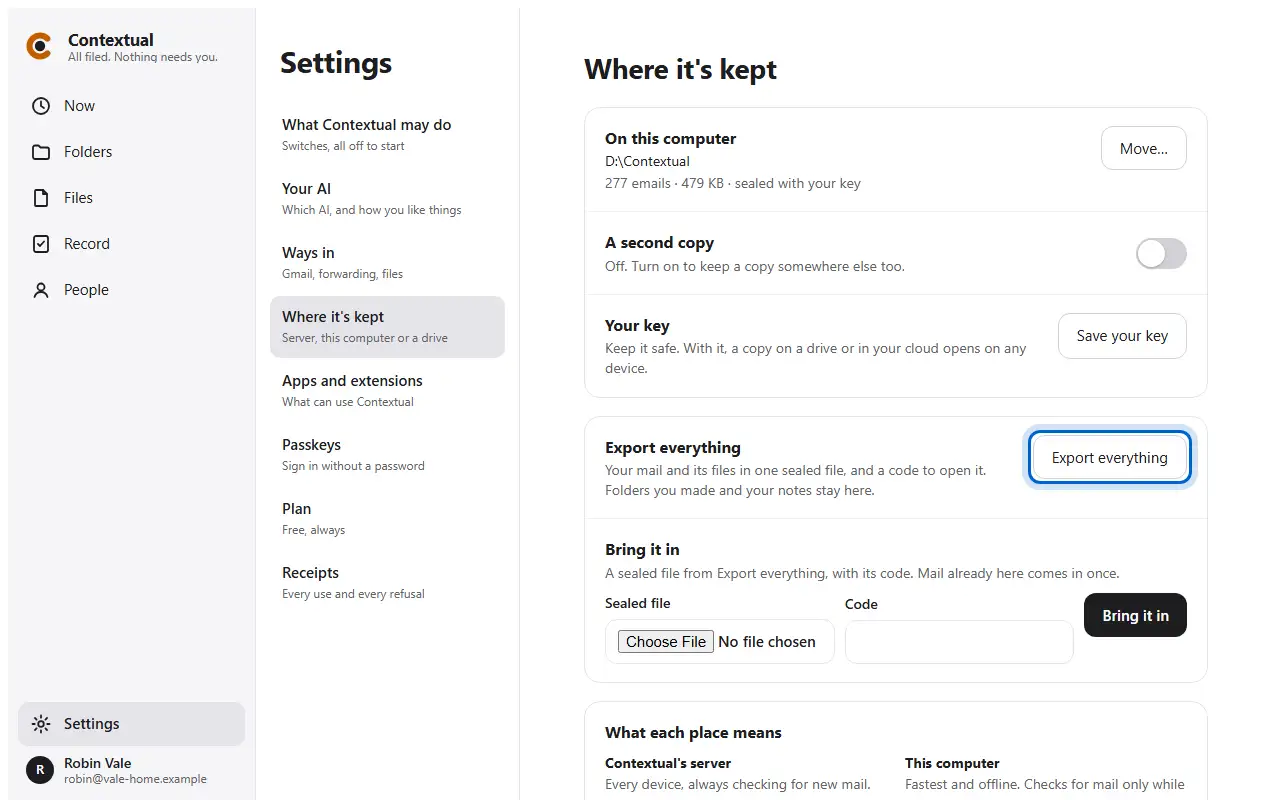
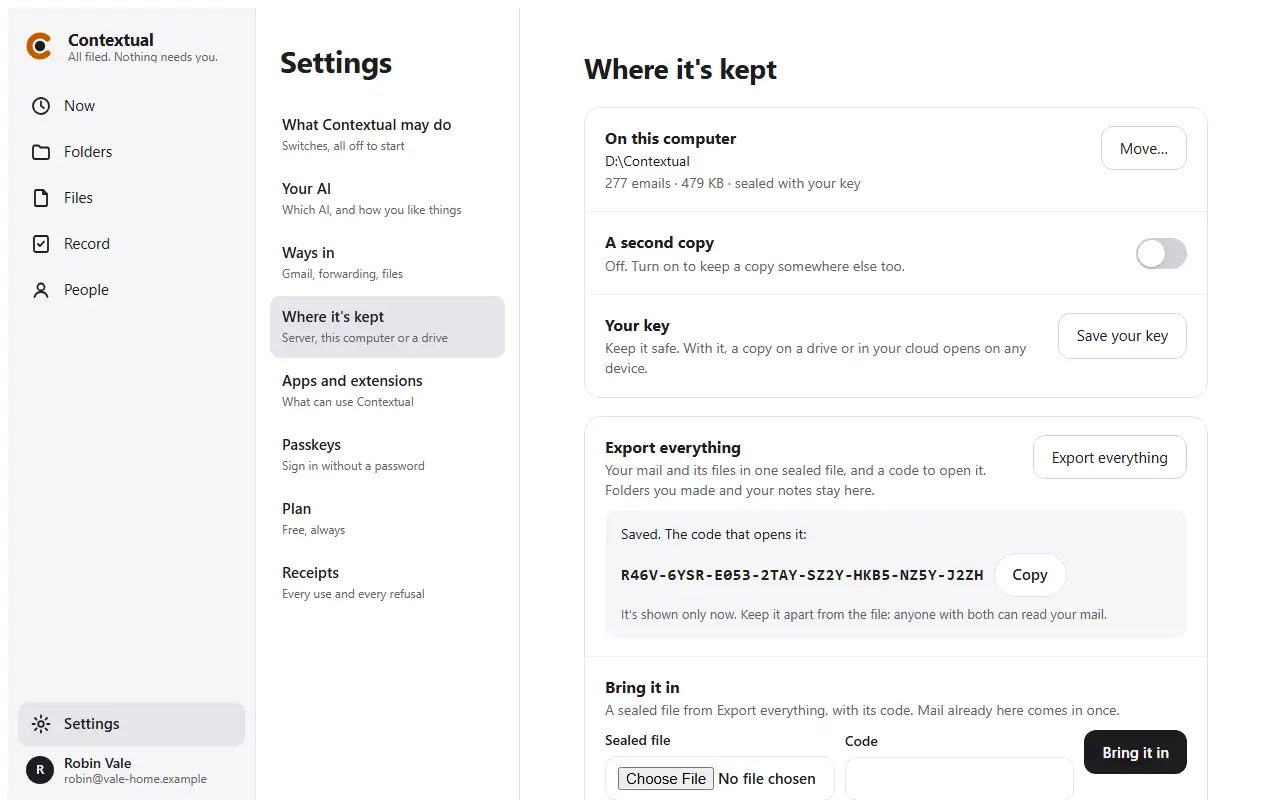
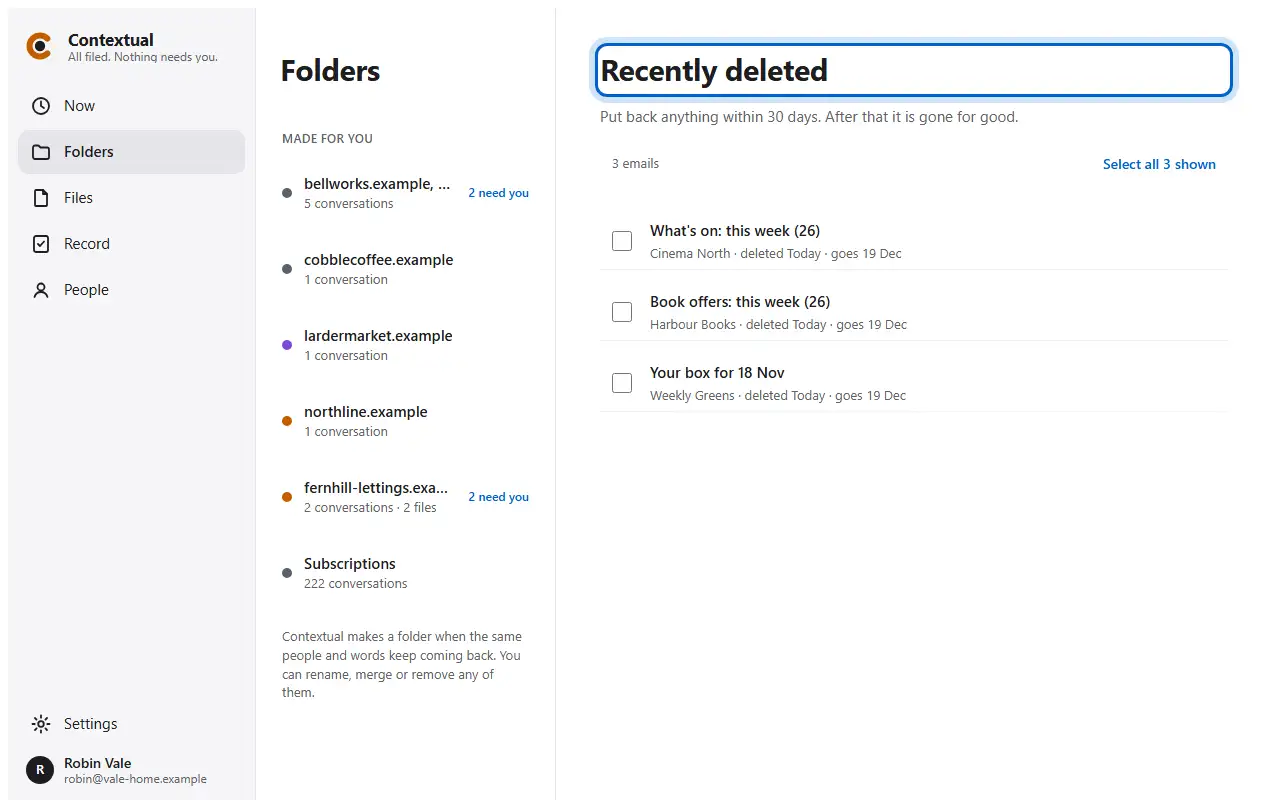
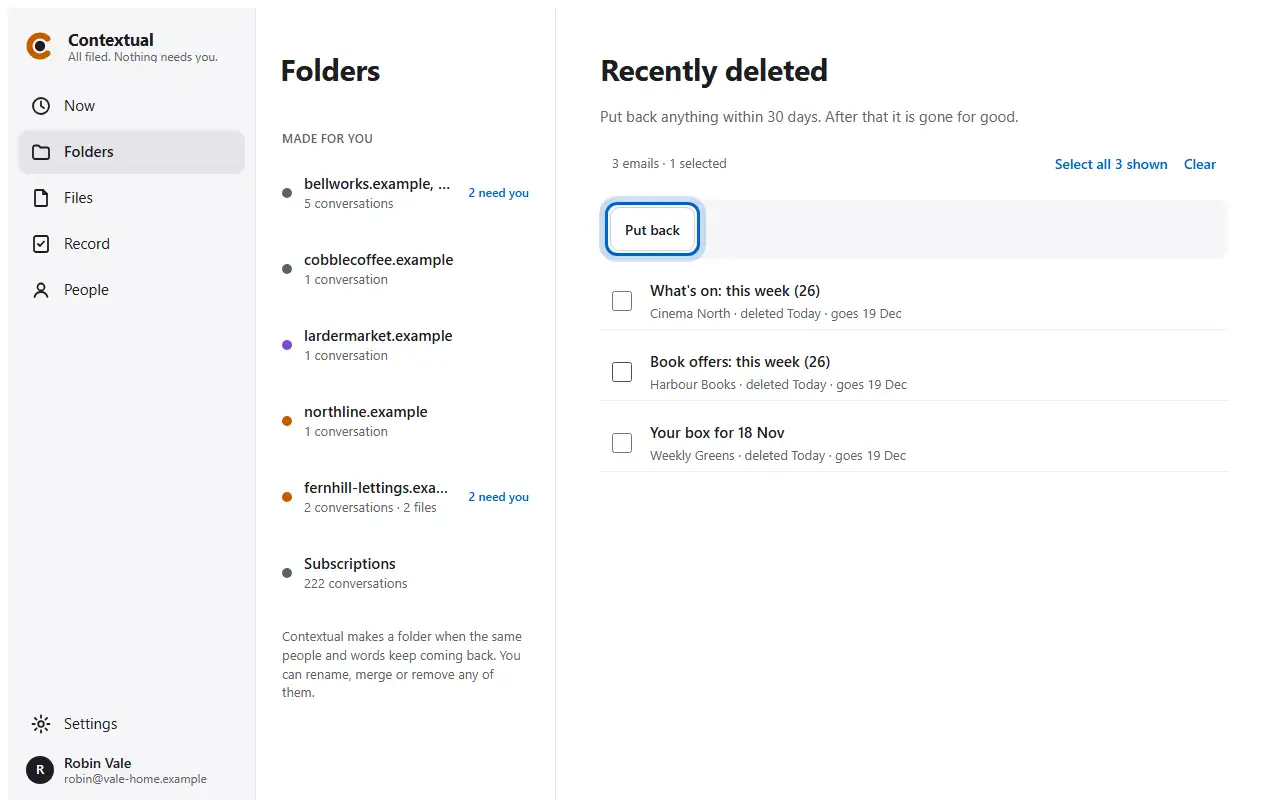
Open the app, sign in, and bring in your own mail.